Quick Start
This guide is designed to help users get the board working.
Powering On the Board
KICKPI-K1B
Preparation
Tip
This only shows the HDMI display connection. For other display connection methods, please read the sections below.
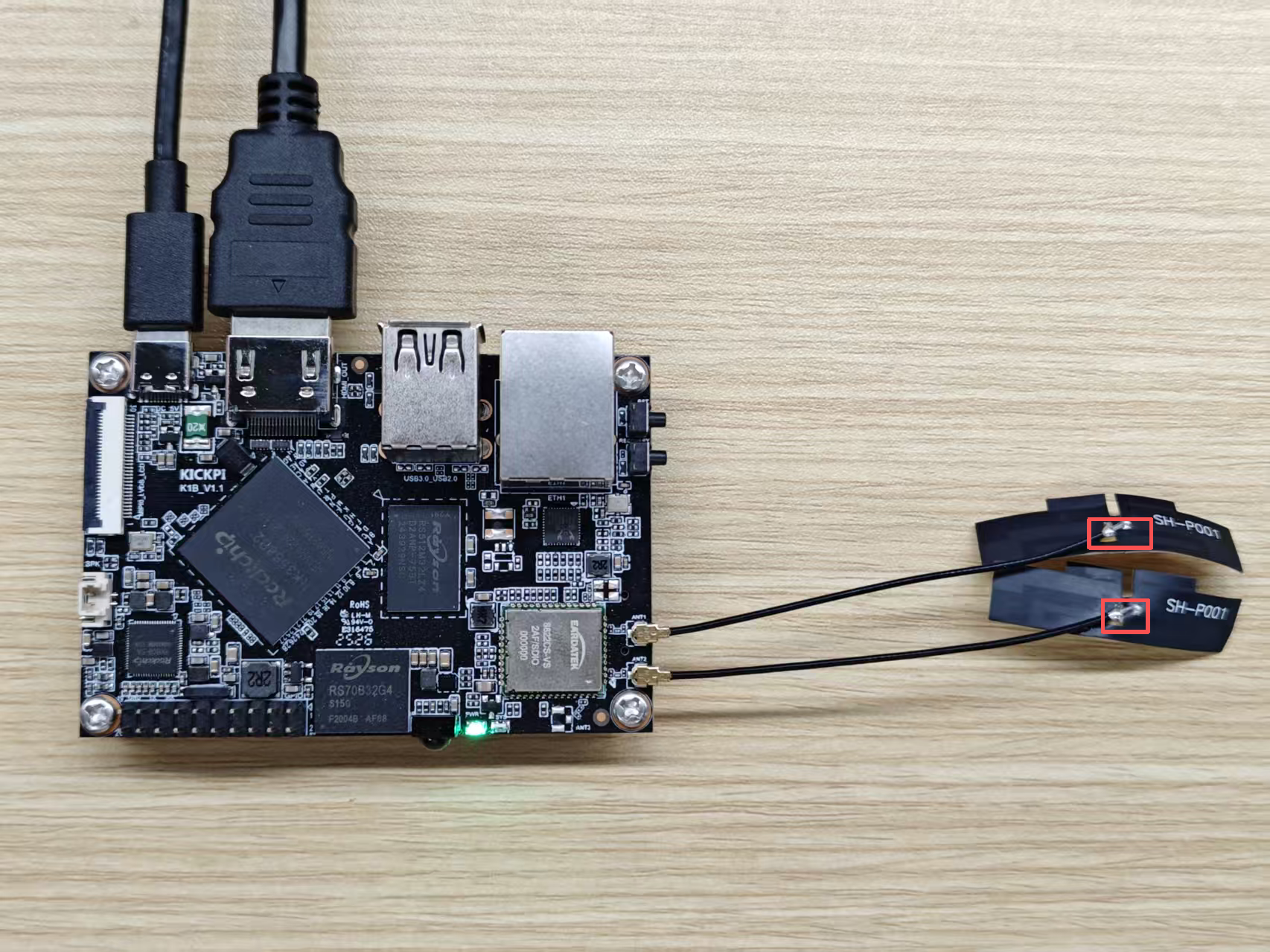
- TYPE-C 5V Power Supply
- HDMI Display
Connection Setup
Note
The antenna soldering points are too close to the motherboard, which can easily cause short circuits (marked as antenna soldering points in the figure). If the antenna is placed near the DDR area, it can easily generate electromagnetic interference, potentially causing the board system to fail to boot.
Solution: Adjust the placement of the antenna to avoid directly covering or contacting the motherboard components.
LCD Display
The K1B supports multiple display interfaces: one MIPI/LVDS interface (flip-lock FPC connector) and one HDMI interface.
Note
Using a MIPI/LVDS display with the board requires a corresponding adapter board. MIPI/LVDS displays purchased officially from KICKPI come with the adapter board by default.
-
MIPI-DSI
MIPI displays default compatible with K1B:
MIPI Panel Model Diagonal Size Resolution Touch AT101DS40I 10.1-inch 800x1280 Y MX101BA1340 10.1-inch 800x1280 Y MX080B2140 8.0-inch 800x1280 Y F050008M01 5.0-inch 720x1280 Y -
LVDS
LVDS displays default compatible with K1B:
LVDS Panel Model Diagonal Size Resolution Touch GG070D1 7-inch 1024x600 Y MX070IBC 7-inch 1024x600 Y
Connection Setup
Warning
The board MUST be powered off when installing/removing peripherals using the FPC connector!
LVDS/MIPI 0
- Insert the FPC cable into the connector with the blue stiffener facing UP and the white metal contacts facing DOWN.

Booting
Determine if the board can start normally through different methods.
LED Status
Check the board status via the LED indicators when no display is connected.
- The board is equipped with two LED indicators: the Green LED is the Power indicator, and the Blue LED is the Heartbeat indicator.
Success
Normal Status: Green LED is steadily on, Blue LED is blinking.
Failure
If the Green LED is off, check power supply. If the Blue LED is off, system working state is abnormal.
Display Output
Android System Desktop
- Boot Screen

Debian System Desktop
- Boot Screen

Ubuntu System Desktop
- Boot Screen
