Quick Start
K2C can be powered by both Android and Linux. when Linux is in use, Like most Pi products, K2C can work in headless mode( no display connected, access via ssh ) and desktop mode( Ubuntu).
To start using K2C as a Linux interactive computer , you need to prepare the following items:
- Power Supply
- Display and Display Cable
- Boot Media
- Keyboard and Mouse
Note
If you want to use K2C as a headless device accessed via network, please refer to SSH Connection.
Power Supply
K2C only supports 1 power mode.
| Power Mode | Voltage/Current |
|---|---|
| DC | 5V/2A(2A is the baseline, or above) |
Power supply connection demonstrated:

Display
| Interface | Maximum Resolution Support |
|---|---|
| HDMI | 4K@60Hz |

Boot Media
The Kickpi K2C is equipped with on-board eMMC and pre-installed with the Android 12 operating system at the factory, requiring no additional boot media. For subsequent use, if you wish to replace the operating system or boot the system from an SD card, you need to prepare an SD card with a storage capacity of ≥ 16GB.

Keyboard and Mouse
K2C has 2 USB 2.0 ports. You can use any one of them to connect a keyboard or mouse.
Buttons
K2C has 3 physical buttons on-board, each one has unique function, here are their usage description:
- RST: Short press to hot reset device once.
- USER: Ubuntu Desktop Edition: A short press opens the Logout interface; Ubuntu Server Edition: A short press of the USER button shuts down the device directly; Android System: A short press turns off the screen.
- FEL: Located on the bottom side of the board. It is used in the scenario of installing OS Image to on-board eMMC,when pressed and hold with a power-on action, SoC's Init code will put device into MASKROM mode, cooperate with flashing tool to install Image into eMMC. MASKROM mode means cheating SoC init code into thinking eMMC has nothing programmed, even without U-boot or U-boot is corrupted and unable to work correctly. It give people a chance to reprogram eMMC after bricking it.


System Startup
User and Password
For any Linux distro Image we released, Default user and password for different distros are as follows:
| System | Username | Password |
|---|---|---|
| Ubuntu2204 | kickpi | kickpi |
| Ubuntu2204 | root | root |
Hardware Installation
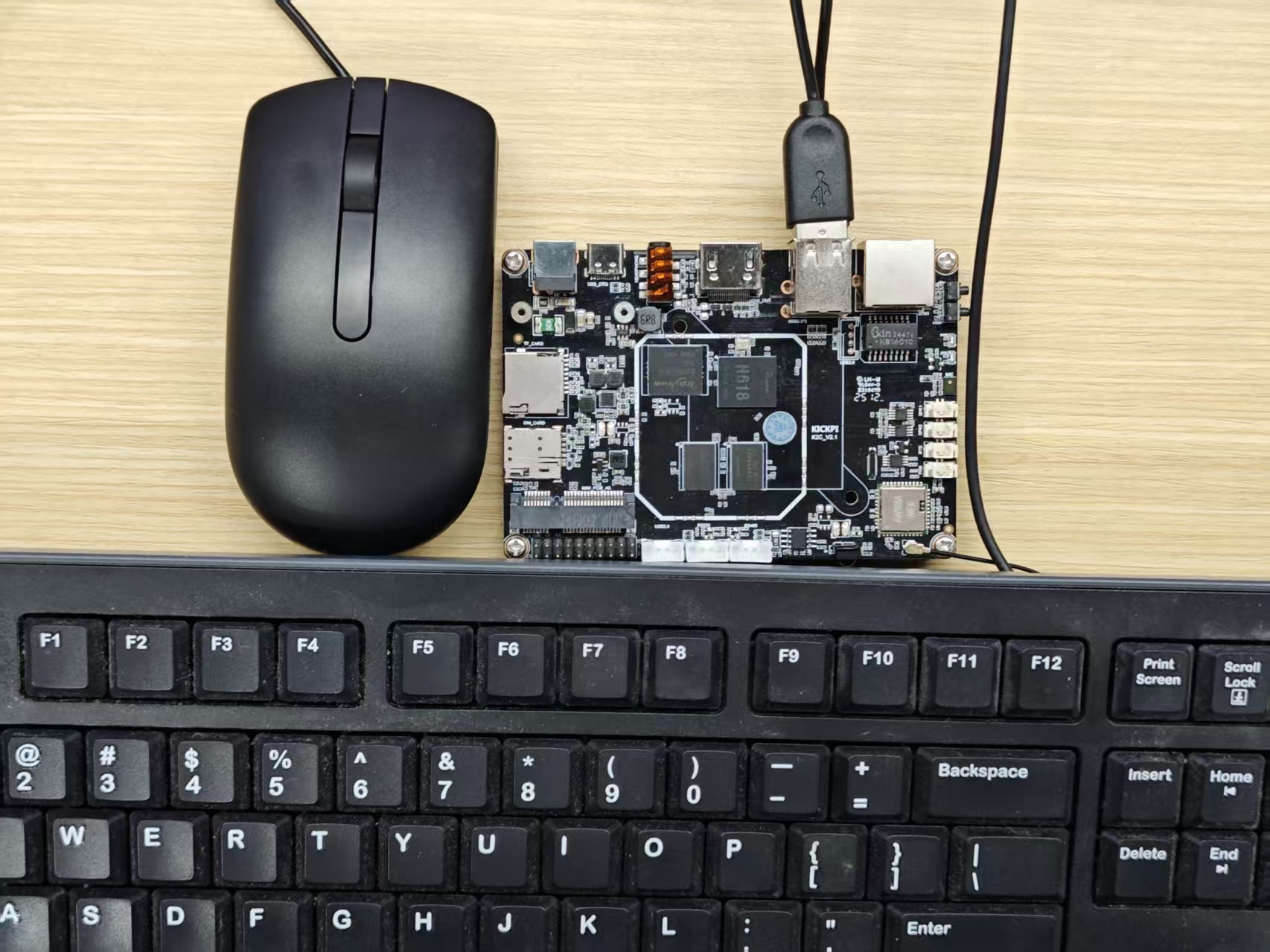
In below installation diagram, we have installed the power supply, HDMI display, mouse, and keyboard to KickPi K2C (If in you scenario , K2C works as a headless device and without display, here is a way to tell how the device's working and trouble shoot issues via on-board LED).
Note
FPC Antenna has bare metal surface, should avoid direct contact with board. Antenna may also generate electromagnetic interference , harm DDR's signals, please place antenna spatially away from DDR and SoC.

LED Status Indicator
You can tell the system working status via the LED indicators.
- K2C board has two LED indicators. green LED is the power indicator, and blue LED is the heartbeat indicator.
Success
Green LED is steady on, blue LED is blinking.
Failure
If green LED is off when device is powered on, please check power supply or short circuit issue. green LED sucks current directly from DC power without any external control. If the blue LED is off or steady on(no blinking), kernel panic or died. Blinking is controlled by a kernel driver. All our released OS Image work this way: Android, Ubuntu,Debian,Armbian.
System Desktop
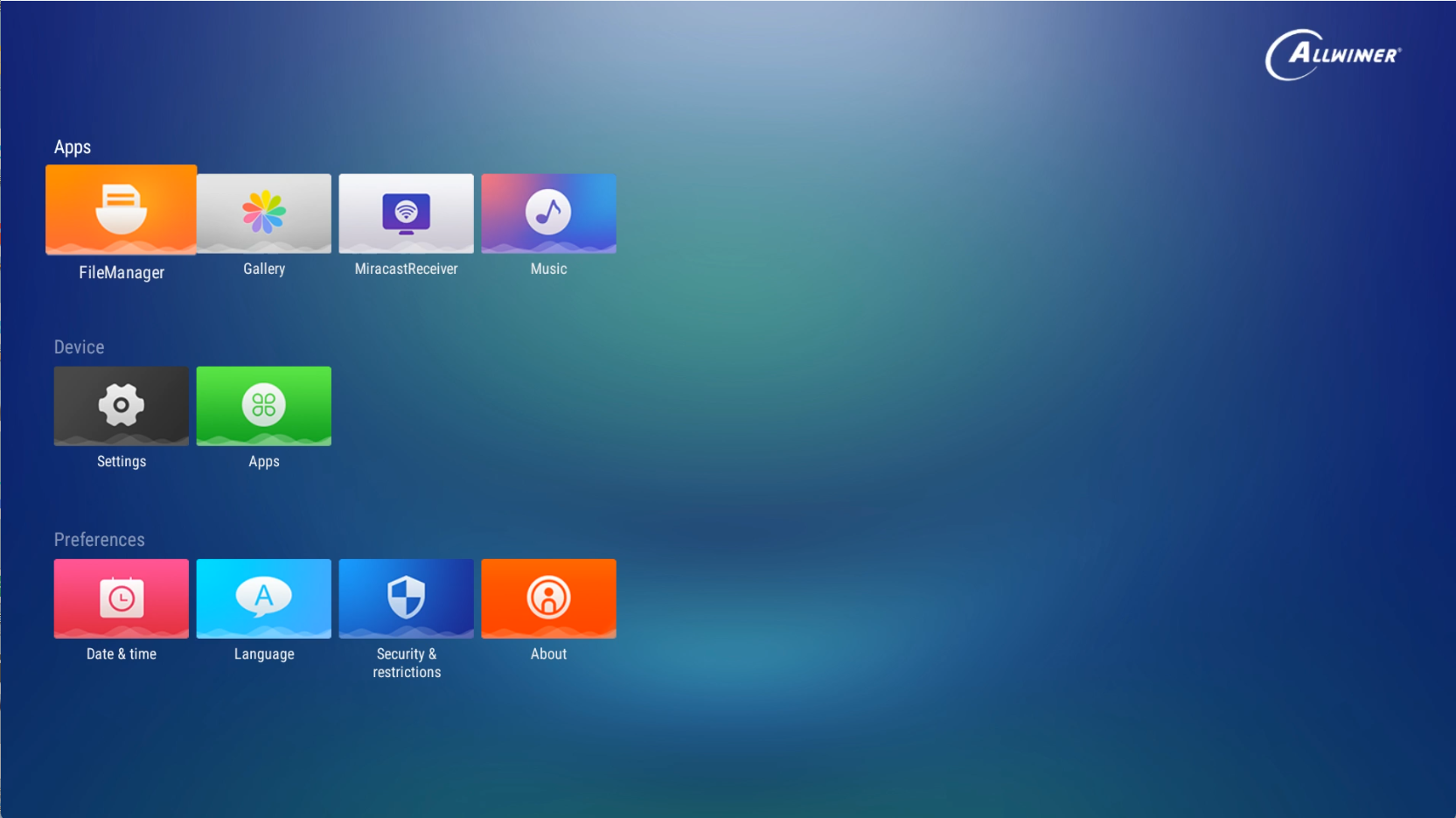
K2C supports Android, Ubuntu operating systems. When our released OS images been installed, each one use different desktop wallpaper.
Android12.0
The K2C supports Android TV and Android tablet operating systems, and the one shown in the figure is the Android TV operating system.
Ubuntu22.04 xfce

Installing Operating System
The Android image for the Kickpi K2C supports both SD card installation and USB installation, while the Ubuntu image currently only supports SD card installation. Motherboards equipped with an eMMC module come pre-flashed with the Android 12 system image by default at the factory.
Obtaining Image
Obtain Kickpi K2C image files from OneDrive.
├── K2C
│   ├── Android12.0_Tablet
│   ├── Android12.0_TV
│   ├── Ubuntu2204_desktop
│   └── Ubuntu2204_server
Android Image SD Card Installation
K2C has a SD card slot ( microSD aka. TransFlash or TF ) which can also serves as a bootable device. In K2C's boot sequence, SD card has higher priority, so K2C always try to boot from SD card first, when no one mounted, K2C then boot from on-board eMMC. Since SoC vendor's official Tools use terminology SD(microSD) instead of TF, so we use SD card in this context, TF and SD means the same thing.
With SoC vendor's tool, we can make 2 types of booting card. SD Boot Card works like a portable edition OS, e.g. windows PE. We use SD Boot Card to power device for some maintain and fix purpose. also can be used to verify your own customization. the second type is SD installation card. you create this kind of booting card when you try to use it to install new Image into on-board eMMC. it contains a specific script to create partition, format FS, copy files to eMMC. Make sure you understand what you need and create the right SD card.
Preparation
Note
Supported SD card filesystem formats: exfat, NTFS
SD Boot Card (SD Boot): Contains bootloader and complete system image, supports device booting directly from microSD card, used in scenarios like eMMC, dev debugging.
SD Installation Card (Upgrade Firmware): Stores firmware image and installation script, used to install or upgrade firmware to the device's on-board storage (e.g., eMMC).
-
Hardware: Windows PC/laptop, HDMI Display (optional), USB TYPE-C cable(some cheap TYPE-C cable only provide current, make sure use the one capable of data exchange). some users reported when using double male TYPE-C to TYPE-C cable, installation failed sometimes, when switch to double male USB TYPE-A to TYPE-C, it's ok.
-
Software: Installing tool PhoenixCard, Android image.
SD Boot Card
When both the eMMC and the SD boot card have system images installed, the system will boot from the SD card by priority.
1. Navigate to the PhoenixCard extracted folder and launch PhoenixCard.

2. Follow the steps shown in the diagram to flash the downloaded image onto the SD card.
Tip
During the operation, if PhoenixCard prompts to format the SD card, simply confirm the formatting.

3. The SD boot card is created successfully.

4. Power off the motherboard, insert the SD boot card into the TF card slot on the motherboard, reconnect the power supply, and wait for the system desktop to display normally on the monitor
Success
The green LED remains lit, and the blue LED blinks continuously (the blue LED will not light up immediately, please wait patiently).
SD Installation Card
1. Navigate to the PhoenixCard extracted folder and launch PhoenixCard.
2. Follow the steps shown in the diagram to flash the downloaded image onto the SD card.
Tip
During the operation, if PhoenixCard prompts to format the SD card, simply confirm the formatting.

3. The SD installation card is created successfully.

4. Power off the motherboard, insert the SD installation card into the TF card slot on the motherboard, and wait for the image installation to complete.
Success
A progress bar will be displayed on the monitor during the installation; the monitor will turn off upon completion, and both the green and blue LEDs will be off simultaneously. At this point, remove the SD card, power the motherboard back on, and wait for the system to restart.
Android Image USB Installation
Install the Android image via USB. Please check if the development board has an onboard eMMC. If it does not have one, you can skip this , in this scenario, board can only only boot from SD boot card.
Preparation
-
Hardware: DC 12V independent power supply, USB A-to-C cable.
-
Software: Installing tool PhoenixSuit, Android image.
Steps
1. The board enters the Installation Mode,the green LED stays on.
Note
Installation Mode:
When the board is powered off, long-press the FEL button on the bottom side of the board, then connect the power supply. The green light on the board will stay on, indicating successful entry into Installation mode.
When the board is powered on, first press and hold the FEL button,don't let loose, then press RST button. The green light will stay on, indicating successful entry into Installation mode.

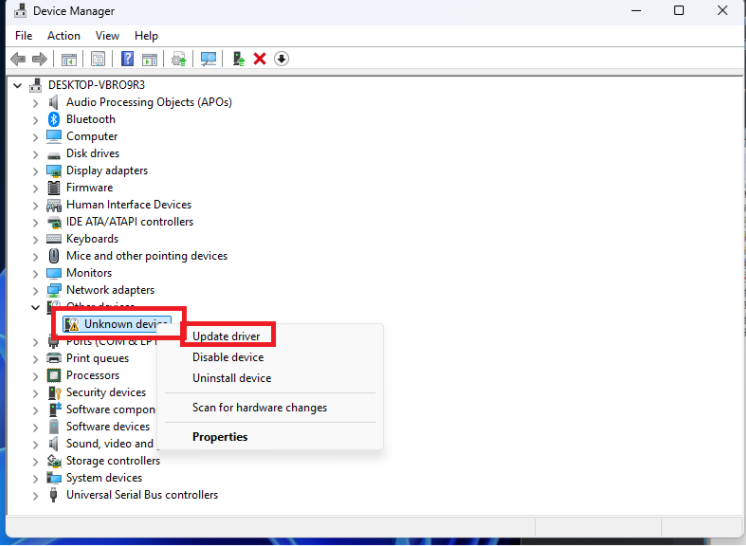
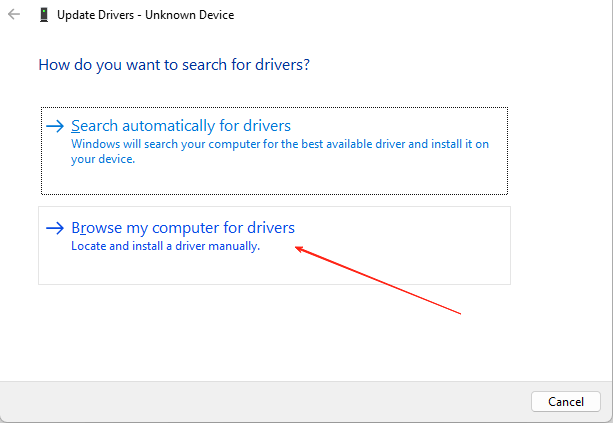
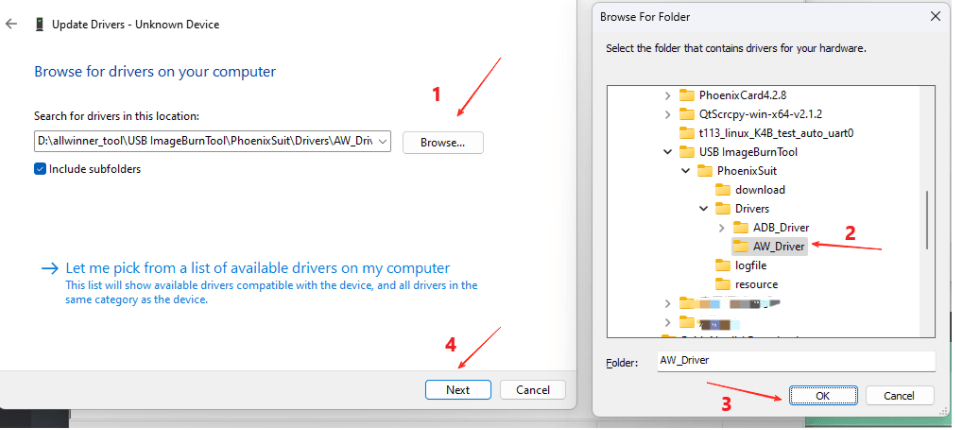
2. Install driver, connect the computer via a USB A - to - C cable, open the computer's Device Manager, and follow the operations shown in the diagram.
Tip
Driver folder path: PhoenixSuit/Drivers/AW_Driver/
3. Open PhoenixSuit from the extracted folder in Administrator mode.

4. In the installing software, click "firmware" to select the image to be install (do not click "Upgrade").
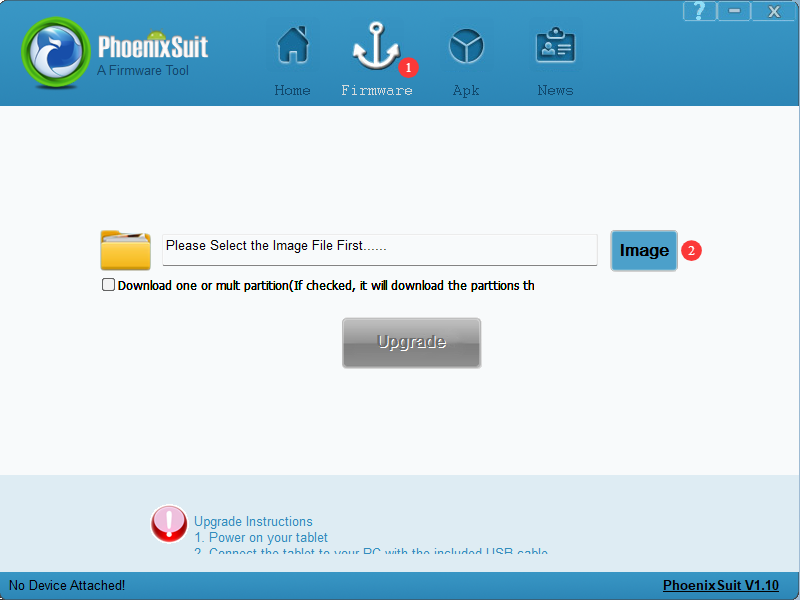
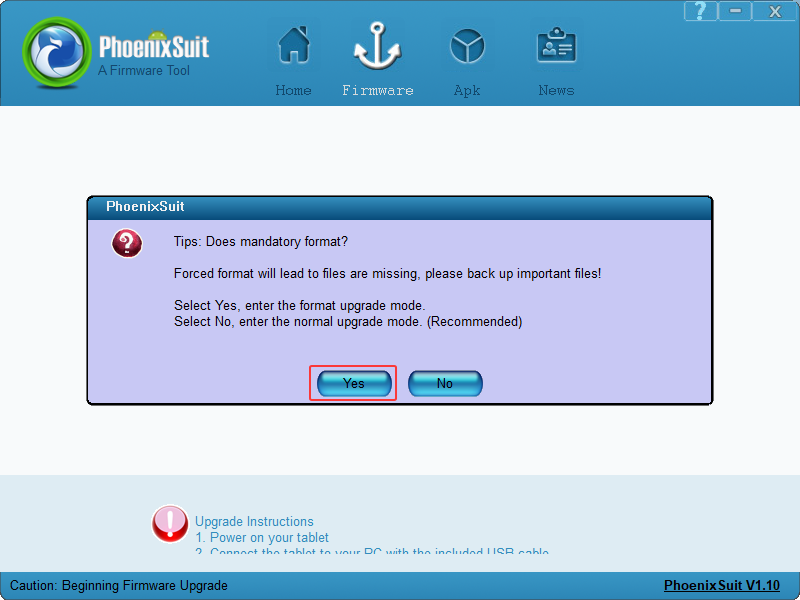
5. Re-enter the installing mode on the development board, connect the USB, and when the software displays the screen as shown below, click "Yes" to start installing. Simply wait for the installing to complete successfully.
Note
Installation Mode:
When the board is powered off, long-press the FEL button on the bottom side of the board, then connect the power supply. The green light on the board will stay on, indicating successful entry into Installation mode.
When the board is powered on, first press and hold the FEL button,don't let loose, then press RST button. The green light will stay on, indicating successful entry into Installation mode.
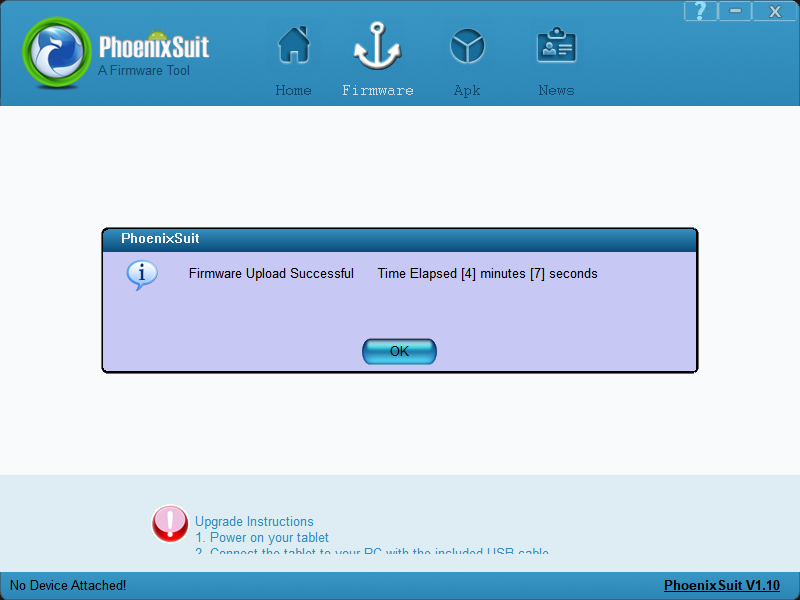
6. Once the image is installed successfully, the board will restart automatically.
Ubuntu Image SD Installation
The Ubuntu image currently only supports SD card installing.
Preparation
- Hardware: SD card (recommended capacity larger than 16GB), SD card reader.
- Software: installing imager tool balenaEtcher, Ubuntu image.
Steps
1. Create an SD Boot Card: Insert the SD card into the computer, open balenaEtcher to write the Linux image.

2. After installing is complete, close the imager software.

3. Insert the installed SD card into the development board, power on the board. The development board will boot from the SD card. Connect an HDMI monitor to check if the desktop is the newly installed one .
Note
1. Boot code chooses SD card as the first booting device, then onboard eMMC in booting order.
2. If you only need to boot Ubuntu from the SD card, you can skip the subsequent installing steps.
4. Installing Ubuntu system from the SD boot card to onboard eMMC.
- Connect the board to an HDMI monitor, a keyboard, and a mouse, then open the Terminal Emulator.

- Enter the following command in the Terminal

- After entering the password, press Enter. The system will automatically start installing process. Wait for the installing to complete.

- After the installing is completed, select "Power off", press the Enter , and wait for the system to restart. Then, power off the device, remove the SD card, and power it on again to check if the Ubuntu system has been installed successfully.

System Configuration
In this chapter, you will use Mobaxterm for serial debugging, ADB for Android debugging, and SSH for remote connection.
Account and Password
Default usernames and passwords for different systems are as follows:
| System | Username | Password |
|---|---|---|
| Ubuntu20.04 | kickpi | kickpi |
| Ubuntu20.04 | root | root |
Mobaxterm
Using Serial Port debugging tool connect K2C to get a console. please check pinout to find UART pins as shown in below diagram.
K2C DEBUG UART Pins
- 2D Pin Diagram

- Physical Image

Tool Preparation
- Software: Mobaxterm
- Hardware: Serial Debug Cable aka. USB-TTL debug cable
Note
Red: VCC (no need to connect); Green: TX; White: RX; Black: GND. If you can't get Serial Port output in Mobaxterm, just switch Green and White wire and try again.

Hardware Installation
- Diagram

Mobaxterm Configuration
1. Click session to create a new session window.
2. Select the session window type as serial.
3. Select the serial COM port number (Check COM number by opening Windows Device Manager -> Ports interface).
4. Set Speed(bps) to 115200.
5. Start the session window.
As shown, after clicking OK, you will enter the command-line input window.

When the board is powered on and connected to the computer, Mobaxterm will display the information output of the development board during startup.

Connection successful. Press Enter in the command-line interface to input commands, successfully logging into the mainboard console.

ADB
Android system supports ADB functionality. ADB (Android Debug Bridge) is an Android system debugging bridge tool. It supports connecting to devices via USB or network, enabling device management and debugging operations such as app installation, file transfer, command execution, etc. ABD is a utility inside Google's Android platform-tools. you can download platform-tools from Google's developer site also.
Tool Preparation
- Hardware: USB Type-C Data Cable
- Software: download ADB_Tool
Hardware Installation
Connect one end of the USB TYPE-C data cable to the mainboard, the other end to the personal host.

ADB Installation
1. Extract the compressed package, e.g., to Windows path D:\ADB\adb-tools.
2. Open cmd window, switch to the extraction directory.
3. Run the command. Successful run indicates installation success.

4. Start ADB debugging.
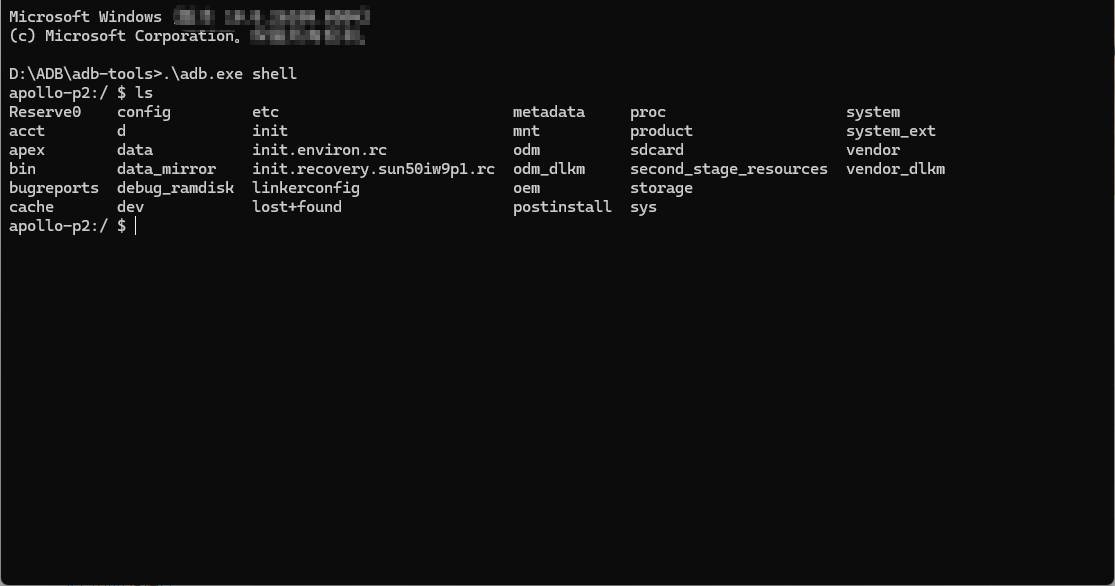
SSH
SSH stands for Secure Shell, an encrypted network transmission protocol. Its core function is to securely remotely log into servers, execute commands, or transfer files in insecure network environments.
Account and Password
Default usernames and passwords for different systems are as follows:
| System | Username | Password |
|---|---|---|
| Ubuntu2204 | kickpi | kickpi |
| Ubuntu2204 | root | root |
IP Address Acquisition
DHCP automatically assigns IP addresses; no settings are needed. Device IP can be obtained in multiple ways.
- when there is Desktop: Connect the board to a display, log into the system, use
ifconfig eth0to get IP address. - via serial port: Enter
ifconfig eth0in the serial terminal to get IP address (Serial connection refer to Mobaxterm chapter above).
SSH Connection
Enter the command in the command line to perform SSH connection:
Example:
PS C:\Users\16708> ssh kickpi@192.168.77.186
The authenticity of host '192.168.77.186 (192.168.77.186)' can't be established.
ED25519 key fingerprint is SHA256:635IZrLQdeYlWWl3SCdLxu9fxLEPmStBapj4APCjzZE.
This key is not known by any other names.
Are you sure you want to continue connecting (yes/no/[fingerprint])? yes
Warning: Permanently added '192.168.77.186' (ED25519) to the list of known hosts.
kickpi@192.168.77.186's password:
Welcome to Ubuntu 24.04.2 LTS (GNU/Linux 6.1.75 aarch64)

 * Documentation:  https://help.ubuntu.com
 * Management:     https://landscape.canonical.com
 * Support:        https://ubuntu.com/pro

This system has been minimized by removing packages and content that are
not required on a system that users do not log into.

To restore this content, you can run the 'unminimize' command.
To run a command as administrator (user "root"), use "sudo <command>".
See "man sudo_root" for details.

kickpi@kickpi:~$
Q&A
- ROOT User Login Failed ?
1. Check if configuration was successful
Run the following commands. If the output is PermitRootLogin yes, it indicates configuration success:
console$ cat /etc/ssh/ssh_config | grep PermitRootLogin
PermitRootLogin yes
console$ cat /etc/ssh/sshd_config | grep PermitRootLogin
PermitRootLogin yes
2. Root user login configuration
Modify SSH configuration files: