Linux Customizations
VNC Screen Sharing
VNC (Virtual Network Computing) is a graphical desktop sharing system based on the Remote Frame Buffer (RFB) protocol. It allows users to connect to and control a remote computer over a network.
Download VNC Viewer from the official website.
Vncserver
Vncserver creates a new virtual desktop session, rather than sharing the current HDMI display. To share the HDMI display, refer to the section on using x11vnc below.
Start VNC service on the board and set a password.
kickpi@kickpi:~$ vncserver

You will require a password to access your desktops.

Password: // Enter the connection password
Verify:   // Re-enter the connection password
Would you like to enter a view-only password (y/n)? n

New 'X' desktop is kickpi:1

Creating default startup script /home/kickpi/.vnc/xstartup
Starting applications specified in /home/kickpi/.vnc/xstartup
Log file is /home/kickpi/.vnc/kickpi:1.log

kickpi@kickpi:~$ ^C
Modify VNC configuration:
Comment out all existing content and add the following:
#!/bin/sh
#xrdb "$HOME/.Xresources"
#xsetroot -solid grey
#x-terminal-emulator -geometry 80x24+10+10 -ls -title "$VNCDESKTOP Desktop" &
#x-window-manager &
# Fix to make GNOME work
#export XKL_XMODMAP_DISABLE=1
#/etc/X11/Xsession
unset SESSION_MANAGER
unset DBUS_SESSION_BUS_ADDRESS
startxfce4 &
Restart the VNC service:
kickpi@kickpi:~$ vncserver -kill :1
Killing Xtightvnc process ID 3843
kickpi@kickpi:~$ vncserver -geometry 1920x1080

New 'X' desktop is kickpi:1

Starting applications specified in /home/kickpi/.vnc/xstartup
Log file is /home/kickpi/.vnc/kickpi:1.log

kickpi@kickpi:~$
Open RealVNC Viewer, enter the IP address, port number, and password:

x11vnc
x11vnc can share the currently running X desktop session (i.e., the session displayed on HDMI) via VNC:
# Install x11vnc
sudo apt update
sudo apt install x11vnc
# Start the service
x11vnc
# After startup, information is printed
The VNC desktop is:      kickpi:0
PORT=5900

******************************************************************************
Have you tried the x11vnc '-ncache' VNC client-side pixel caching feature yet?

The scheme stores pixel data offscreen on the VNC viewer side for faster
retrieval.  It should work with any VNC viewer.  Try it by running:

    x11vnc -ncache 10 ...

One can also add -ncache_cr for smooth 'copyrect' window motion.
More info: http://www.karlrunge.com/x11vnc/faq.html#faq-client-caching
Connect using port 5900:

Key Remapping
Disabling the USER_Key Default Function
Linux Desktop Version
Note
In the Linux desktop version, the default function of the USER_key is to open the Login/Logout interface. Disable this default function from the settings.
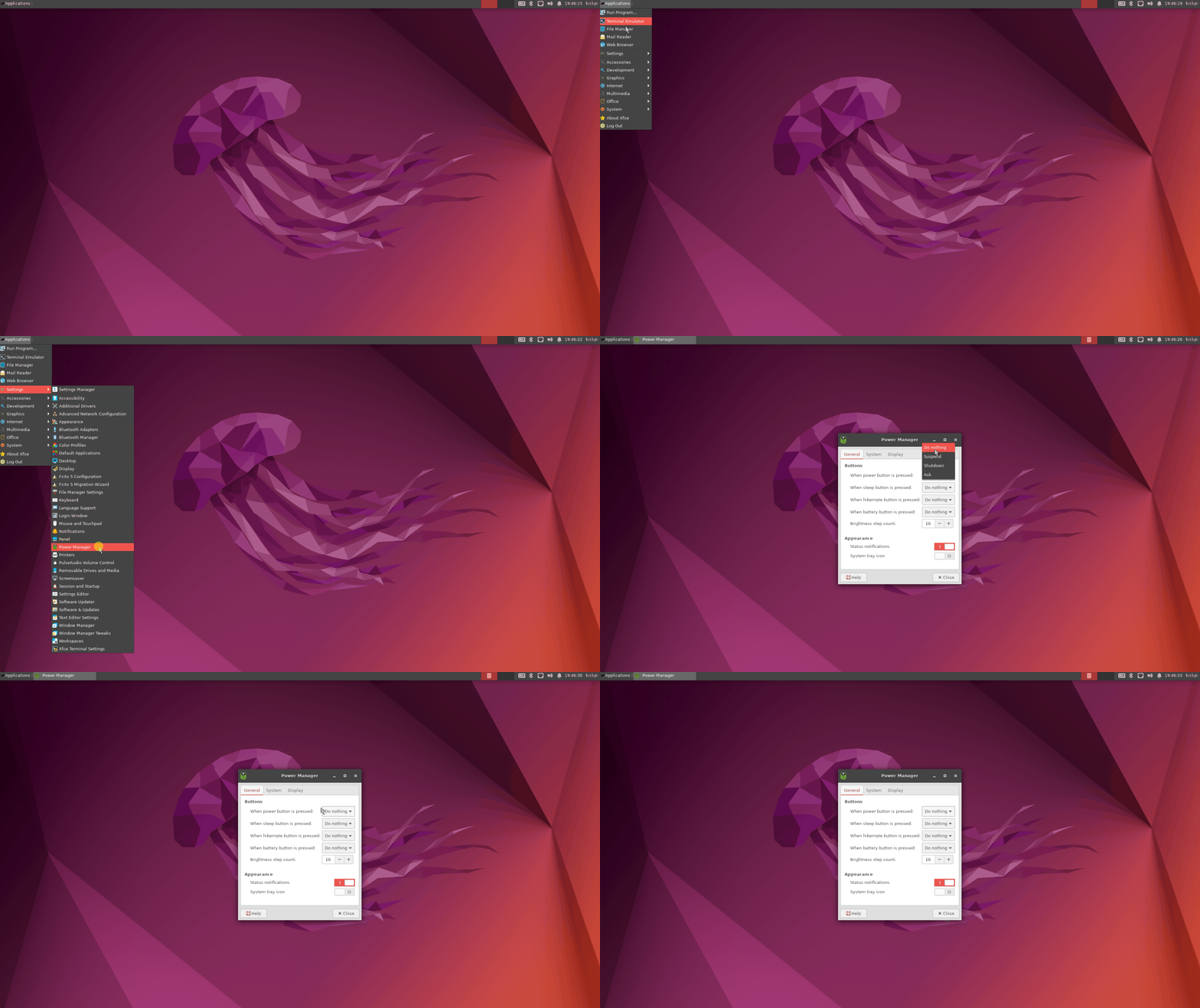
Linux Server Version
Note
In the Linux server version, the default function of the USER_Button is shutdown. Refer to the following to disable the shutdown function.
1. Modify the systemd login manager configuration:
2. Uncomment and modify the following lines:
3. Restart the service:
Application Usage
After disabling the default function of the USER_Button, applications can normally receive key press events. Implement the desired functionality as needed.
kickpi@kickpi:~$ hexdump /dev/input/event1
0000000 6ba5 691e 0000 0000 15d7 0003 0000 0000
0000010 0001 0074 0001 0000 6ba5 691e 0000 0000
0000020 15d7 0003 0000 0000 0000 0000 0000 0000
0000030 6ba5 691e 0000 0000 62c7 0005 0000 0000
0000040 0001 0074 0000 0000 6ba5 691e 0000 0000
0000050 62c7 0005 0000 0000 0000 0000 0000 0000
0000060 6ba6 691e 0000 0000 a413 000b 0000 0000
0000070 0001 0074 0001 0000 6ba6 691e 0000 0000
0000080 a413 000b 0000 0000 0000 0000 0000 0000
0000090 6ba6 691e 0000 0000 f502 000d 0000 0000
00000a0 0001 0074 0000 0000 6ba6 691e 0000 0000
00000b0 f502 000d 0000 0000 0000 0000 0000 0000
System Copy
Copying eMMC System to a New SD Card
Tool Preparation
- Hardware: SD Card (Write speed ≥ class10. SD card performance affects system backup time.)
Procedure
1. Insert the SD card into the slot:
kickpi@kickpi:~$ lsblk   // View block devices
NAME         MAJ:MIN RM  SIZE RO TYPE MOUNTPOINTS
mmcblk0      179:0    0  7.2G  0 disk
└─mmcblk0p1  179:1    0  7.1G  0 part /mnt/emmc/mmcblk0p1
                                      /var/log.hdd
                                      /
mmcblk0boot0 179:16   0    4M  1 disk
mmcblk0boot1 179:32   0    4M  1 disk
mmcblk1      179:48   0 58.6G  0 disk                    // mmcblk1 is the SD card
└─mmcblk1p1  179:49   0   58G  0 part /mnt/sd/mmcblk1p1  // Unmount the partition if already mounted.
zram0        254:0    0  981M  0 disk [SWAP]
zram1        254:1    0   50M  0 disk /var/log
kickpi@kickpi:~$
2. Format the SD card:
kickpi@kickpi:~$ sudo umount /dev/mmcblk1p1  // Unmount the mounted partition
[sudo] password for kickpi:
kickpi@kickpi:~$ sudo mkfs.ext4 /dev/mmcblk1 // Format the SD card
mke2fs 1.46.5 (30-Dec-2021)
Found a dos partition table in /dev/mmcblk1
Proceed anyway? (y,N) y                      // Confirm with y
Creating filesystem with 15360000 4k blocks and 3842048 inodes
Filesystem UUID: 0357bd31-32bf-45ee-b989-6fa1a1781605
Superblock backups stored on blocks:
        32768, 98304, 163840, 229376, 294912, 819200, 884736, 1605632, 2654208,
        4096000, 7962624, 11239424

Allocating group tables: done
Writing inode tables: done
Creating journal (65536 blocks): done
Writing superblocks and filesystem accounting information: done

kickpi@kickpi:~$
3. Use the dd if command or the nand-sata-install command to copy the system to the SD card.
dd if
Tip
Please wait patiently during the copy process. Depending on SD card performance, copying may take approximately 10-25 minutes.
kickpi@kickpi:~$ dd if=/dev/mmcblk0  of=/dev/mmcblk1  bs=4M
1850+0 records in
1850+0 records out
7759462400 bytes (7.8 GB, 7.2 GiB) copied, 190.241 s, 40.8 MB/s
kickpi@kickpi:~$
nand-sata-install
Tip
In the diagram, /dev/mmcblk1p1 indicates the system is being copied from eMMC to SD card.

Creating a System Image by Copying eMMC System
Tool Preparation
- Hardware: USB Drive (Capacity ≥ 32 GB. USB drive performance affects system backup time.)
Procedure
1. Mount the USB drive:
```?shell mkdir /mnt/sda mount /dev/sda1 /mnt/sda
2\. Copy and create the system image

```shell
dd if=/dev/mmcblk0  of=/mnt/sda/output.img  bs=4M status=progress
sync /mnt/sda/
3. The generated image will be approximately 30GB in size. The resulting output.img can be used for flashing.
System Login
The system defaults to automatic login for the Kickpi user. Automatic login can be disabled or configured for other users by modifying relevant configuration files.
Serial Console Login Modification
Modify the file in /lib/systemd/system/serial-getty@.service.d/override.conf:
kickpi@kickpi:~$ cat /lib/systemd/system/serial-getty@.service.d/override.conf
[Service]
ExecStartPre=/bin/sh -c 'exec /bin/sleep 10'
ExecStart=
ExecStart=-/sbin/agetty --noissue --autologin kickpi %I $TERM // To remove automatic login, delete the --autologin field. To change the login user, modify 'kickpi'.
Type=idle
kickpi@kickpi:~$
Desktop Login Modification
The system defaults to automatic login. To disable automatic login, delete or rename the configuration file:
Modifying the Auto-login User
1. Modify /etc/lightdm/lightdm.conf.d/22-autologin.conf
[Seat:*]
autologin-user=root  // Modify the login username
autologin-user-timeout=0
user-session=xfce
2. Modify /etc/lightdm/users.conf
[UserList]
minimum-uid=0 # Allow UID=0 (i.e., root) login
hidden-users=nobody nobody4 noaccess
hidden-shells=/bin/false /usr/sbin/nologin /sbin/nologin
Non-Desktop Terminal (TTY) Login
Modify /usr/lib/systemd/system/getty@.service.d/override.conf
[Service]
ExecStartPre=/bin/sh -c 'exec /bin/sleep 10'
ExecStart=
ExecStart=-/sbin/agetty --noissue --autologin root %I $TERM // To remove automatic login, delete the --autologin field. To change the login user, modify 'root'.
Type=idle
Network Configuration
Note
Network Priority:
When the Ethernet port is using a local network, the Wi-Fi connection cannot access the external internet.
Static IP Configuration
Configure according to your own gateway and subnet, otherwise network access will fail.
vim /etc/network/interfaces
// Add the following content

auto eth0
iface eth0 inet static
address 192.168.1.100   // IP Address
netmask 255.255.255.0   // Subnet Mask
gateway 192.168.1.1     // Gateway
Setting Up Wi-Fi Hotspot (AP) Mode
Install create_ap
git clone https://github.com/oblique/create_ap
cd create_ap
sudo make install

# Install dependencies
sudo apt install hostapd dnsmasq
Create AP with One Command
# Basic usage: create_ap wlan0 eth0 SSID Password
sudo create_ap wlan0 eth0 MyHotspot MyPassword123

# Run in the background
sudo create_ap --daemon wlan0 eth0 MyHotspot MyPassword123
Switch Desktop Environment to Chinese
1. Configure the Chinese locale in the Linux system:
sudo apt update
sudo apt install language-pack-zh-hans language-pack-zh-hant
sudo dpkg-reconfigure locales
2. In the pop-up window, use Space to select zh_CN.UTF-8 UTF-8, then press Enter to confirm:

3. Continue by selecting zh_CN.UTF-8, then press Enter to confirm:

4. Wait for initialization to complete, update the system default language to Chinese, and reboot the system.