Linux QT Development Environment Setup
Warning
Before you dive into Qt development, please make sure you have the knowledge of different licenses Qt provided, LGPL-3.0, GPL and commercial license. Make sure choose the right tools and edition for your project to avoid legal suites. We do not assume responsibility towards or accept liability to any other person for the contents of this tutorial.
Qt is a cross-platform C++ application development framework widely used for desktop, embedded, and mobile devices. Setting up the Qt development environment on a Linux system is a relatively straightforward process, involving a series of steps to ensure all dependencies are correctly installed.
Preparation
Tip
Installation operations need to be performed in an online environment.
- Operating System: Linux distribution (Ubuntu).
- Package Manager: apt, yum.
Dependency Installation
Ensure the relevant environment and dependencies are installed before installing Qt.
1. Install the basic compilation toolchain.
Verify GCC/G++: No need to install separately; build-essential includes them:
2. Install the clang compiler.
3. Install make-guile.
4. Install cmake.
Install Qt
1. Update the package list.
2. Install the Qt 5 core development libraries using the following command.
3. Install all packages starting with qt5.
4. Install missing Qt QML/Quick development libraries.
Tip
The commands here need to be chosen based on the system architecture.
//Linux Desktop System (x86_64)
sudo apt install -y qtdeclarative5-dev
sudo apt install -y qtquickcontrols2-5-dev
//aarch64 Embedded Development Board
sudo apt install -y qtdeclarative5-dev:arm64
5. Verify the installation. Open a terminal and run the following command to confirm Qt is installed correctly.
6. (Optional) Install common Qt5 modules. If specific functionalities (like network, database, GUI components, etc.) are needed during development, install the corresponding modules additionally.
Install QT Creator
Qt Creator is the development IDE for Qt, providing an intuitive user interface for creating and managing Qt projects.
1. Install Qt Creator.
2. Open a terminal and enter the following command to start Qt Creator.

Configure Development Environment
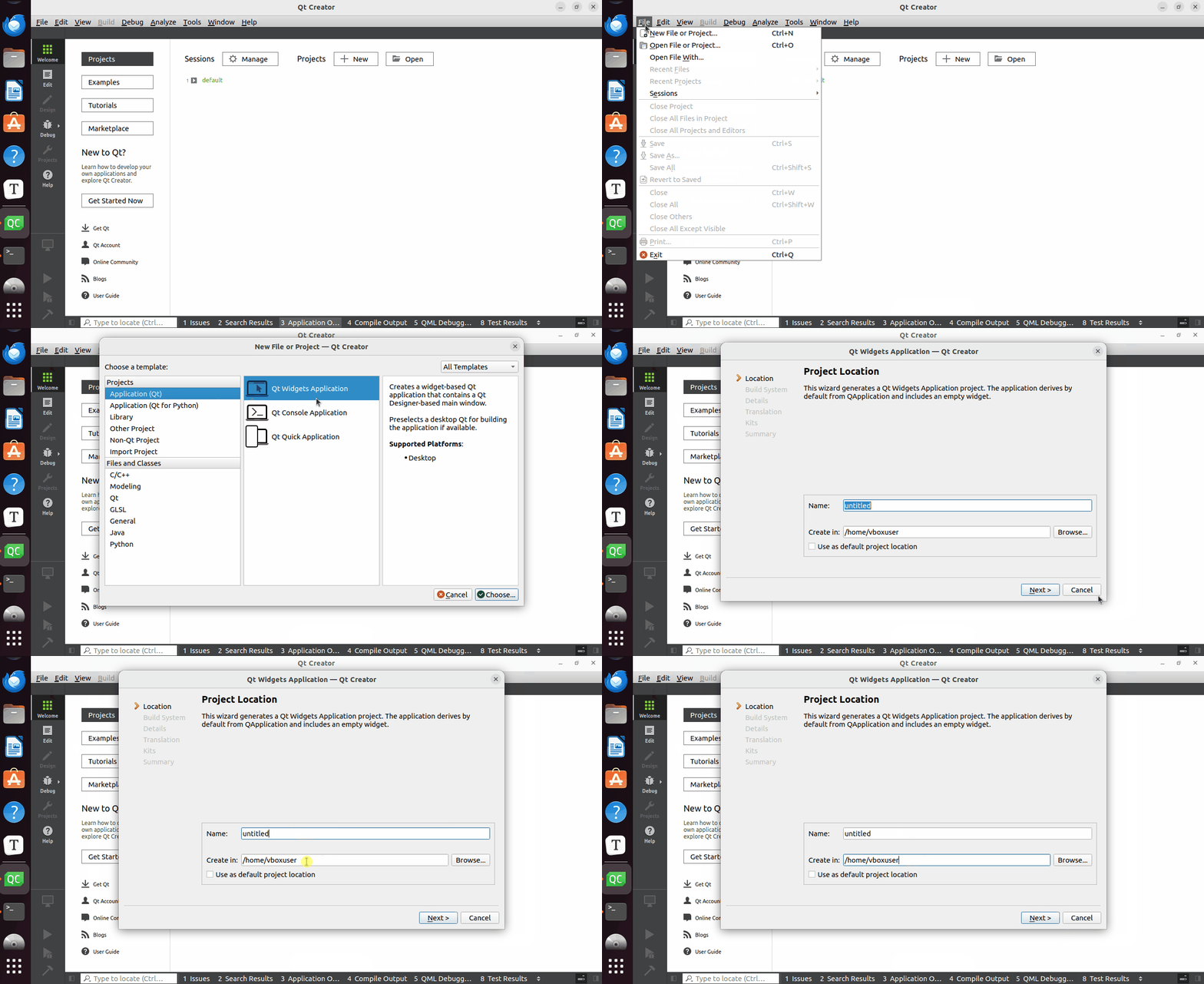
1. Create a New Project: Open Qt Creator, click "File" > "New File or Project" > "Qt Widgets Application". Follow the prompts to enter the project name and save path.
2. Configure Project: In the "Projects" menu, you can configure the compiler, build directory, debugger, etc.

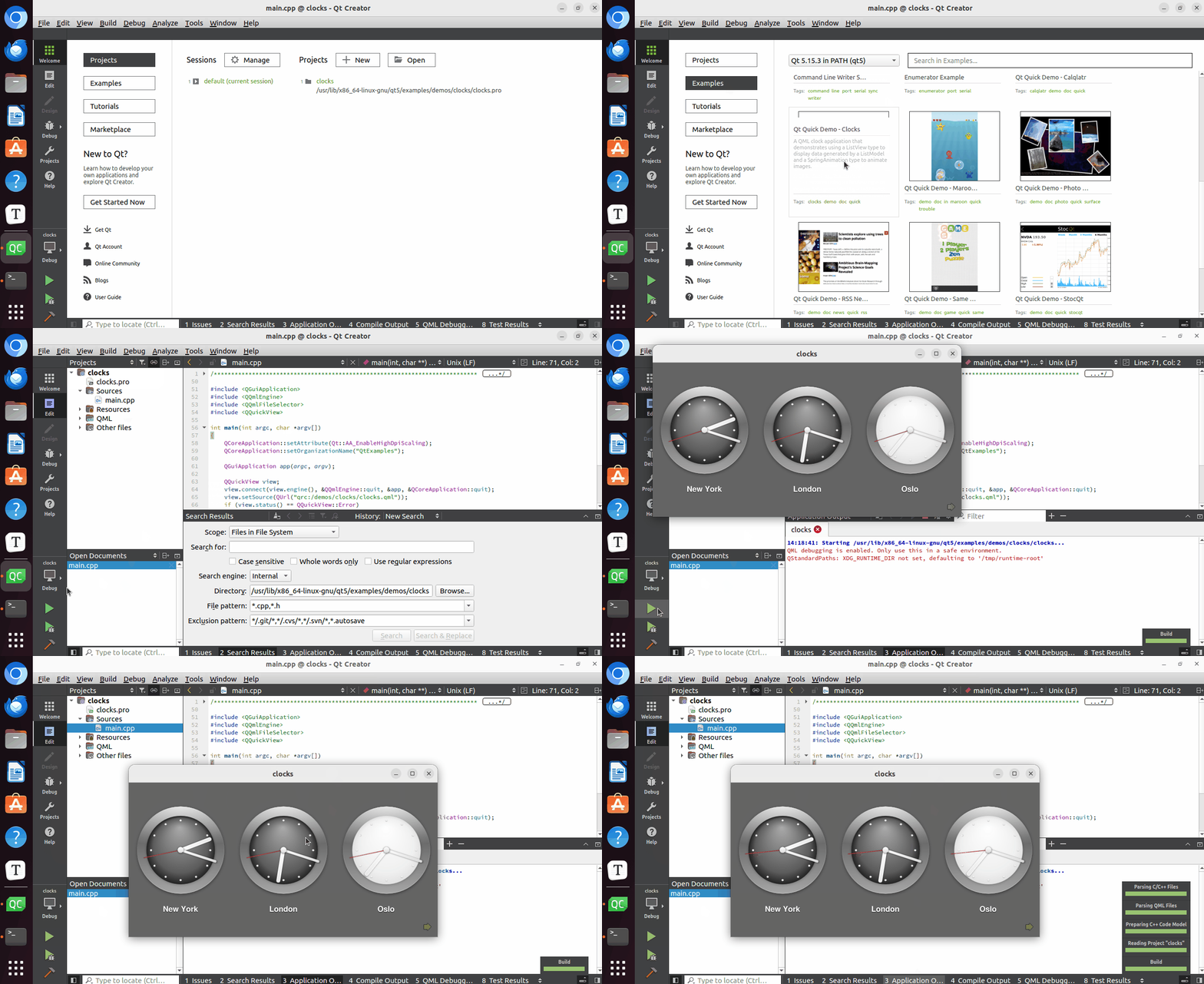
3. Run Program: In the "examples" menu, select an example project to run.
Warning
When running different example projects, they might fail due to missing relevant libraries or classes. Adjustments need to be made based on the error messages.