Quick Start
K7 can be powered by both Android and Linux. when Linux is in use, Like most Pi products, K7 can work in headless mode( no display connected, access via ssh ) and desktop mode( Ubuntu, Armbian, Debian desktop).
To start using K7 as a Linux interactive computer , you need to prepare the following items:
- Power Supply
- Display and Display Cable
- Boot Media
- Keyboard and Mouse
Note
If you want to use K7 as a headless device accessed via network, please refer to SSH Connection.
Power Supply
K7 only supports 1 power mode.
| Power Mode | Voltage/Current |
|---|---|
| DC | 12V/1.5A( 1.5A is the baseline, or above) |
Power supply connection demonstrated:

Display
K7 has multiple display connectivity: HDMI 2.1, MIPI DSI and TYPE-C DisplayPort.
Note
Connect K7 to some white brand HDMI display may show some issues like flickering , please replace display or downgrade HDMI output resolution/refresh rate.
| Interface | Maximum Resolution Support |
|---|---|
| HDMI | 4K@60Hz |
| MIPI DSI | 2K@60Hz |
| TYPE-C DisplayPort | 1080P@60Hz |
HDMI

TYPE-C DisplayPort

MIPI DSI
Here we list some tested MIPI DSI display models and their size, resolution.
| Model | Size | Resolution |
|---|---|---|
| AT101DS40I | 10.1-inch | 800x1280 |
| MX101BA1340 | 10.1-inch | 800x1280 |
| MX080B2140 | 8.0-inch | 800x1280 |
| F050008M01 | 5.0-inch | 720x1280 |
Warning
Installing or removing the MIPI display while the device is powered on may cause damage to the MIPI display or a short circuit. Please install or remove the MIPI display only when the device is powered off.

MIPI config
Warning
Android,Ubuntu,Debian are able to detect MIPI display and apply the right configuration. But Armbian is an EXCEPTION. When Armbian been installed to K7 and with a MIPI display as screen,Armbian can not dynamically use the right dtbo to get display work. please use serial debug cable to get a console(if IP is known, ssh works too).
In /boot partition we already included many verified MIPI display's dtbo files.
/boot/dtb-6.1.115-vendor-rk35xx/rockchip/overlay/rk3576-kickpi-lcd-mipi-AT101DS40I.dtbo
/boot/dtb-6.1.115-vendor-rk35xx/rockchip/overlay/rk3576-kickpi-lcd-mipi-MX101BA1340.dtbo
/boot/dtb-6.1.115-vendor-rk35xx/rockchip/overlay/rk3576-kickpi-lcd-mipi-MX080B2140.dtbo
/boot/dtb-6.1.115-vendor-rk35xx/rockchip/overlay/rk3576-kickpi-lcd-mipi-F050008M01.dtbo
example: connect K7 with MX080B2140 8 inch display ,add overlays (overlays=rk3576-kickpi-lcd-mipi-MX080B2140).
$ vim /boot/armbianEnv.txt
verbosity=1
bootlogo=true
console=both
overlay_prefix=rk35xx
fdtfile=rockchip/rk3576-kickpi-k7.dtb
rootdev=UUID=389fa6c5-33a8-4653-99ec-f532b9d5a742
rootfstype=ext4
overlays=rk3576-kickpi-lcd-mipi-MX080B2140
usbstoragequirks=0x2537:0x1066:u,0x2537:0x1068:u
Boot Media
K7 comes with eMMC (embedded Multi Media Card) on-board by default, and has Android 14 AOSP operating system pre-installed. External boot media is not required. However, for subsequent use, if you want to change the operating system or sideload another OS from SD card, you need to prepare a SD card with ≥ 16GB storage capacity.

Keyboard and Mouse
K7 has 3 USB 3.0 ports. You can use any one of them to connect a keyboard or mouse.

Buttons
K7 has 4 physical buttons on-board, each one has unique function, here are their usage description:
-
MASKROM: Located on the bottom side of the board. It is used in the scenario of installing OS Image to on-board eMMC,when pressed and hold with a power-on action, SoC's Init code will put device into MASKROM mode, cooperate with RockChip's flashing tool to install Image into eMMC. MASKROM mode means cheating SoC init code into thinking eMMC has nothing programmed, even without U-boot or U-boot is corrupted and unable to work correctly. It give people a chance to reprogram eMMC after bricking it.
-
POWER: Short press to put device to standby/wakeup/(shutdown in Ubuntu). Long press to Powers off device.
-
RESET: Short press to hot reset device once.
-
RECOVERY: RECOVERY button is detected by U-boot, not SoC's Init code, so it's function is implemented in U-boot. No matter what OS has been installed in eMMC(Android,Ubuntu,Debian,Armbian), Press and hold with a power-on action will put device into loader mode,cooperate with RockChip's flashing tool to install OS Image into eMMC (Armbian is a little different when using flashing tool to install Armbian into eMMC, please refer to "Armbian Image Installation"). Also, when the already installed OS is Android, press and hold RECOVERY button with a power-on action and with NO USB cable connected to perform Image installing, device will boot into Android recovery mode, there allow user to do factory reset and other things.


System Startup
User and Password
For any Linux distro Image we released, Default user and password for different distros are as follows:
| System | Username | Password |
|---|---|---|
| Debian12 | linaro | linaro |
| Debian12 | root | root |
| Ubuntu24.04 | kickpi | kickpi |
| Ubuntu24.04 | root | root |
| Armbian | kickpi | kickpi |
Hardware Installation
In below installation diagram, we have installed the power supply, HDMI display, mouse, and keyboard to KickPi K7 (If in you scenario , K7 works as a headless device and without display, here is a way to tell how the device's working and trouble shoot issues via on-board LED).
Note
FPC Antenna has bare metal surface, should avoid direct contact with board. Antenna may also generate electromagnetic interference , harm DDR's signals, please place antenna spatially away from DDR and SoC.

LED Status Indicator
You can tell the system working status via the LED indicators.
- K7 board has two LED indicators. green LED is the power indicator, and blue LED is the heartbeat indicator.
Success
Green LED is steady on, blue LED is blinking.
Failure
If green LED is off when device is powered on, please check power supply or short circuit issue. green LED sucks current directly from DC power without any external control. If the blue LED is off or steady on(no blinking), kernel panic or died. Blinking is controlled by a kernel driver. All our released OS Image work this way: Android, Ubuntu,Debian,Armbian.
System Desktop
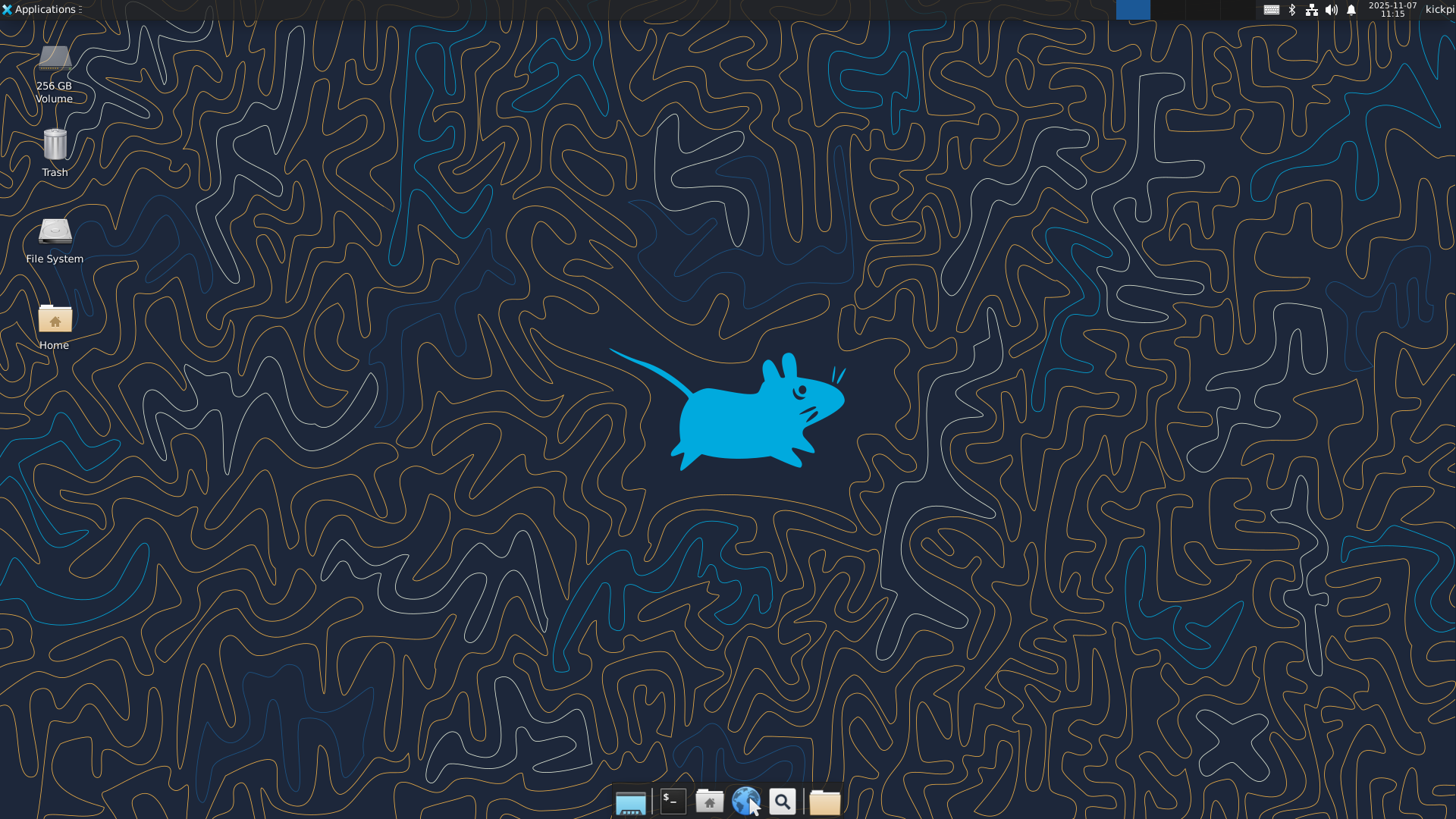
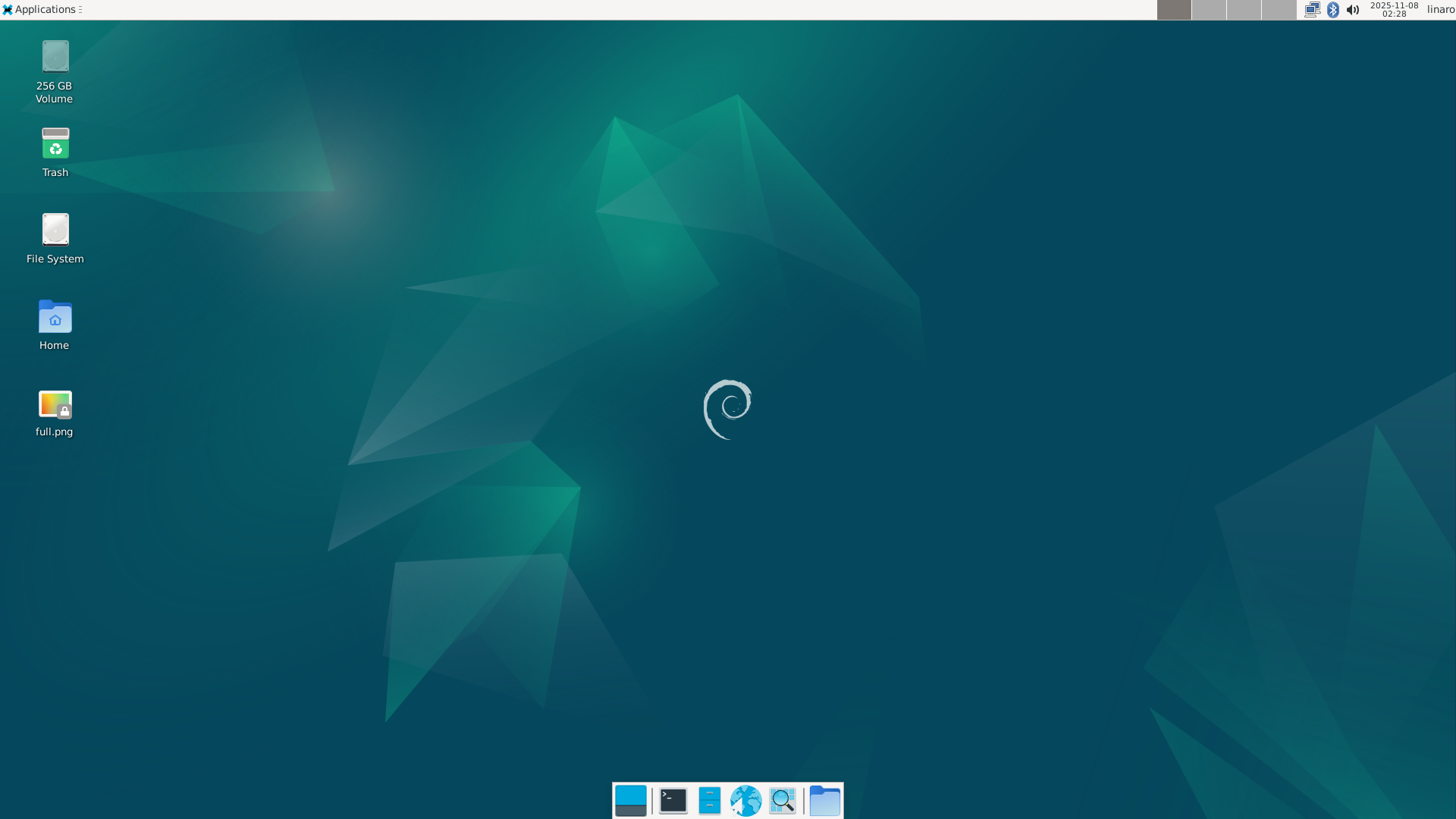
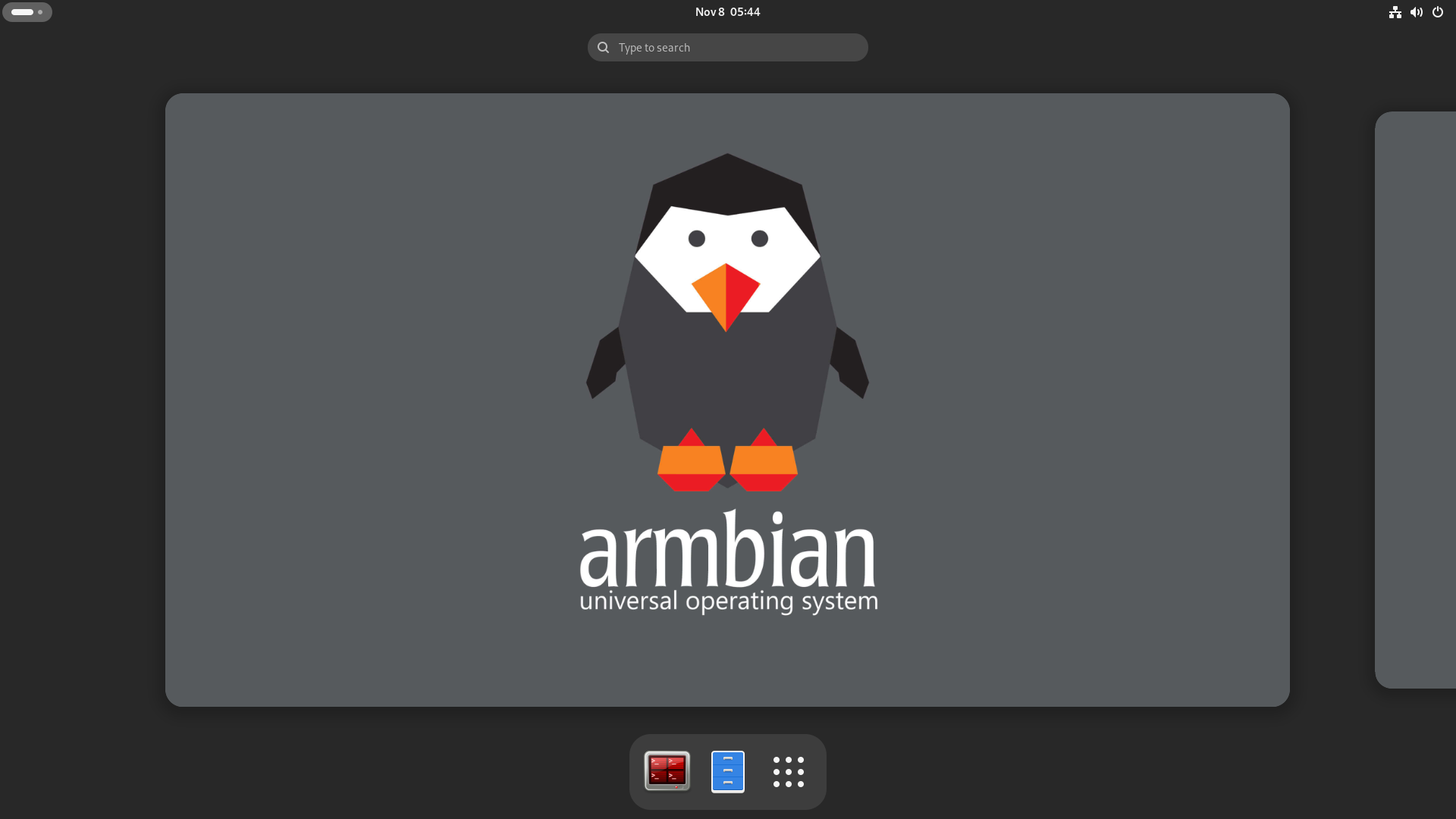
K7 supports Android, Ubuntu, Debian, and Armbian operating systems. When our released OS images been installed, each one use different desktop wallpaper.
Android14.0

Ubuntu24.04 xfce
Debian12 xfce
Armbian Ubuntu24.04 gnome
Installing Operating System
By default, Kickpi K7 has on-board eMMC and boots from eMMC directly. If you need to replace the system on eMMC or want to sideload another OS from other storage devices (e.g., microSD card), please read this chapter and proceed.
Obtaining Image
Obtain Kickpi K7 image files from OneDrive.
├── Android14       // Android 14 Tablet Desktop Image
├── Armbian         // Armbian Ubuntu2404 Image
├── Debian12        // Debian12 xfce Desktop Image
└── Ubuntu2404      // Ubuntu2404 xfce Desktop Image
Warning
Android, Ubuntu, and Debian systems share the same installation method while Armbian is an exception. Armbian image differs from the official Rockchip image format and cannot be installed using the same way. Please read next Chapter install Armbian image to lean more.
Android,Ubuntu,Debian Image Installation
USB Installation
Install OS Image to the on-board EMMC via USB TYPE-C ( Booting from SD card or install Image into eMMC via SD card, please read SD Card installation.
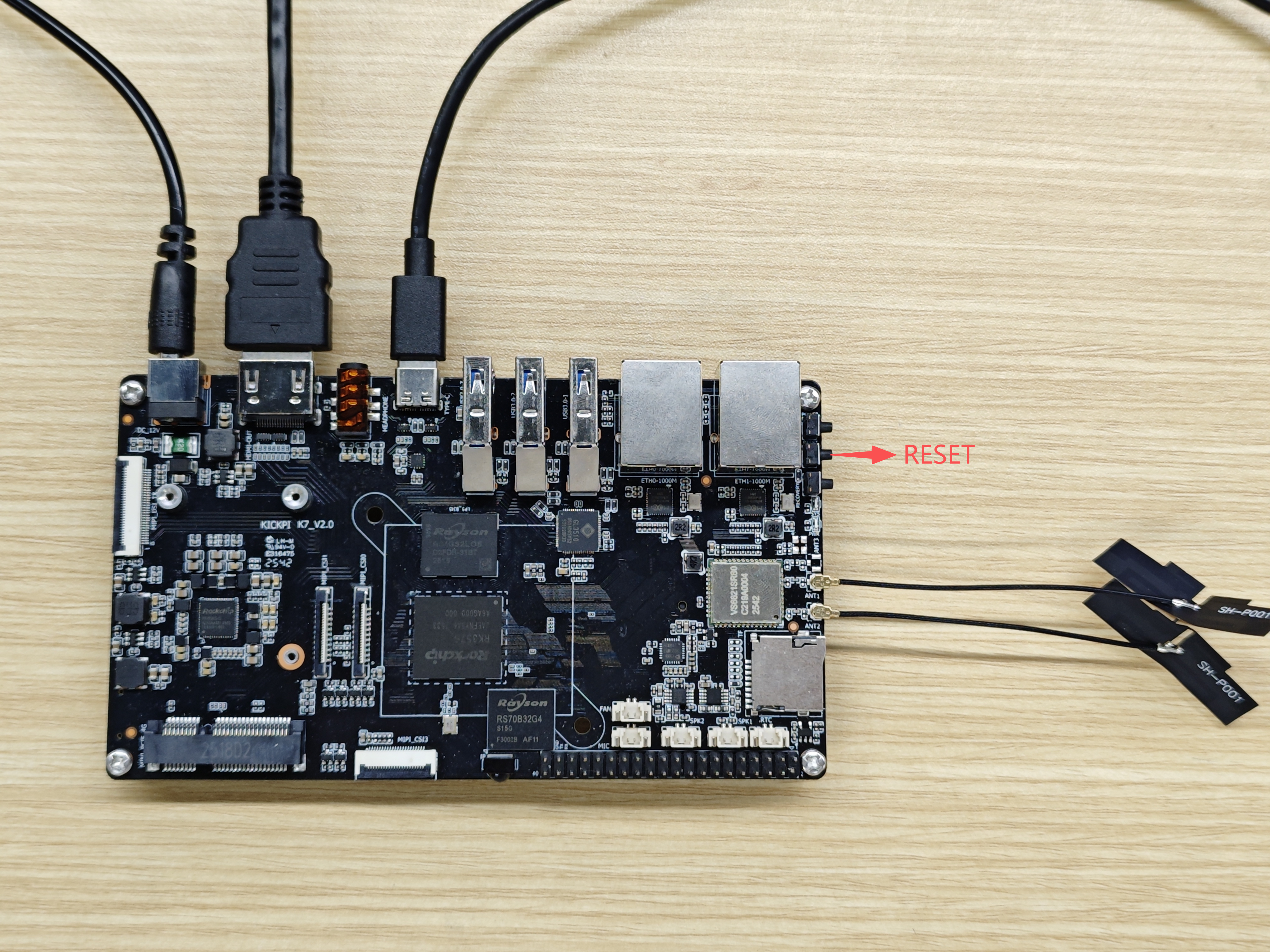
Hardware Installation
- Hardware: Windows PC/laptop, DC 12V/1.5A, HDMI Display (optional), USB TYPE-C cable(some cheap TYPE-C cable only provide current, make sure use the one capable of data exchange). some users reported when using double male TYPE-C to TYPE-C cable, installation failed sometimes, when switch to double male USB TYPE-A to TYPE-C, it's ok.
Tip
Connecting a display makes it easier to check whether the image installation is successful. K7 supports multiple display connections, only HDMI connection is demonstrated here.
Installation Steps
- Download USB driver DriverAssiant, open DriverInstall.exe in the extracted folder. Click to Install Driver.

- Download RKDevTool, open RKDevTool.exe in the extracted folder.

- Press MASKROM button and hold, don't let loose, plug in 12V DC, Connect board and PC/laptop with USB TYPE-C cable. when RKDevTool show “Found One MASKROM device” in status bar, RKDevTool setup talk with board. let loose MASKROM button.
Note
There are two ways to put board into MASKROM mode:
When board is powered off, press and hold the MASKROM button (don't let loose), apply power. The green LED will be steady on, connect the USB cable, after RKDevTool detected one MASKROM device, let loose MASKROM button,
When board is in power on state, press and hold the MASKROM button (don't let loose), then short press the RESET button once, after RKDevTool detected one MASKROM device, let loose MASKROM button.

- Select image file and install.
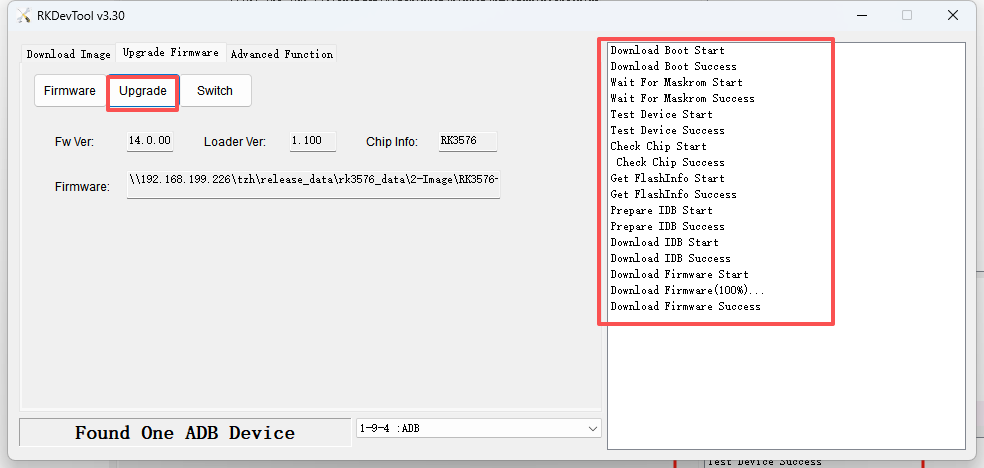
1. Click Upgrade Firmware to switch to the second tab, click Firmware, select the target image from where you saved it to install. Usually the image name start with prefix "update" , e.g. update-*.img.

2. Click Upgrade, right text view will show installing details.
Success
If the board is connected to a display, board will reboot automatically after installing is done, wait for the board to show the desktop
If installing without display, you can't see the reboot process, check the LED status: green LED steady on, blue LED keep blinking! During installing, blue LED is off all the time. so when it starts blinking, means board reboot over.
SD Card installation
K7 has a SD card slot ( microSD aka. TransFlash or TF ) which can also serves as a bootable device. In K7's boot sequence, SD card has higher priority, so K7 always try to boot from SD card first, when no one mounted, K7 then boot from on-board eMMC. Since SoC vendor's official Tools use terminology SD(microSD) instead of TF, so we use SD card in this context, TF and SD means the same thing.
With SoC vendor's tool, we can make 2 types of booting card. SD Boot Card works like a portable edition OS, e.g. windows PE. We use SD Boot Card to power device for some maintain and fix purpose. also can be used to verify your own customization. the second type is SD installation card. you create this kind of booting card when you try to use it to install new Image into on-board eMMC. it contains a specific script to create partition, format FS, copy files to eMMC. Make sure you understand what you need and create the right SD card.
Note
Supported SD card filesystem formats: exfat, NTFS
SD Boot Card (SD Boot): Contains bootloader and complete system image, supports device booting directly from microSD card, used in scenarios like eMMC, dev debugging.
SD Installation Card (Upgrade Firmware): Stores firmware image and installation script, used to install or upgrade firmware to the device's on-board storage (e.g., eMMC).
- Download SDDiskTool, open SD_Firmware_Tool.exe in the extracted folder, mount TF card to your PC/ laptop(via some card reader).
Note
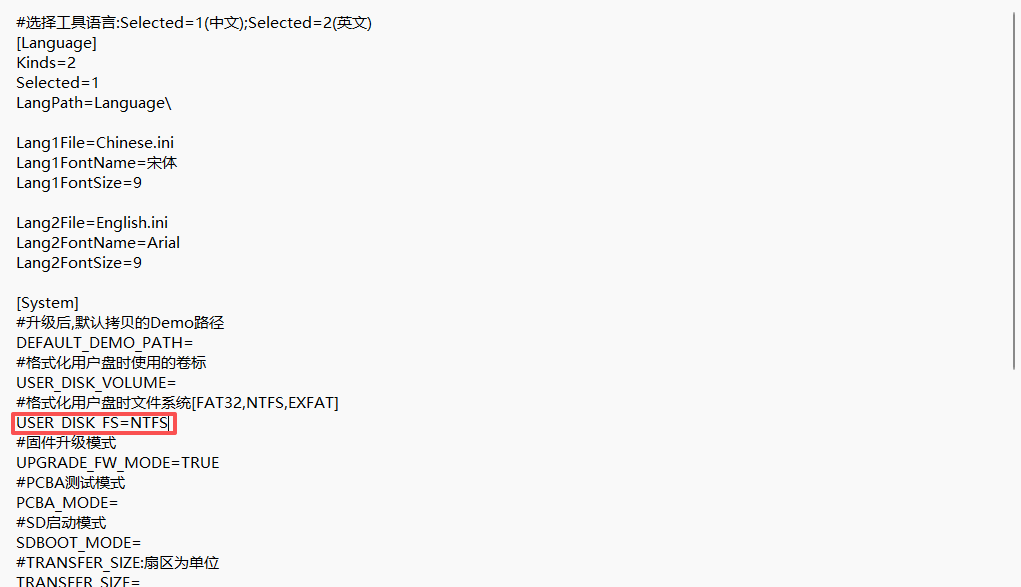
SDDiskTool default display language is Chinese. To change to English, find the config.ini file as shown below, change Selected=1 under [Language] to Selected=2, save, and restart SDDiskTool.

Note
Installation failure may occur if your SD card has a capacity larger than 16GB. Please modify SDDiskTool_v1.74/config.ini, specify the format as NTFS, save, and restart SDDiskTool.
SD Boot Card
Note
Boot sequence is When both on-board eMMC and the SD Boot Card/SD installation Card contain OS systems, the system boot from SD card.
eMMC erase
Note
When the on-board eMMC has been pre-installed with the Android operating system, and the SD card has been flashed with another Linux system and you attempt to boot from the SD card, the boot process will fail. The reason is that the device's boot procedure prioritizes booting into the U-boot bootloader on the on-board eMMC — when no mountable SD card is detected, the device directly loads the kernel and rootfs from the on-board eMMC; when an external SD card is detected, the U-boot on the on-board eMMC will try to transfer control to the U-boot on the SD card. However, the Linux system comes with a different version of the bootloader (U-boot), which is incompatible with the U-boot version on the on-board eMMC, and the latter cannot load the Linux's U-boot. In this case, we need to erase the existing system on the on-board eMMC.
1. Download USB driver DriverAssiant, open DriverInstall.exe in the extracted folder. Click to Install Driver.
2. Run RKDevTool,power off board, press and hold RECOVER button, don't let loose, power on, RKdevTool status bar show Found One LOADER Device,let loose RECOVER button.

3. Choose Advanced Function tab, click EraseAll,this Action will erase data from on-board eMMC.

4. Left text view show erased。

Step1. Create SD Boot Card
1. Installation failure may occur if your SD card has a capacity larger than 16GB. Please modify SDDiskTool_v1.74/config.ini, specify the format as NTFS, save, and restart SDDiskTool.
2. Download image, Follow the steps shown in the diagram to operate.
├── Android14       // Android 14 Tablet Desktop Image
├── Armbian         // Armbian Ubuntu2404 Image
├── Debian12        // Debian12 xfce Desktop Image
└── Ubuntu2404      // Ubuntu2404 xfce Desktop Image
Note
During the creation of the SD Boot Card, SDDiskTool will ask if format the SD card, choose yes. When SD card formatting is over, it may prompt "burning failed" or "writing loader failed!", simply dismiss the dialog and recreate disk. This tool is a Rockchip official tool and has some minor bugs.

3. SD Boot Card creation completed.
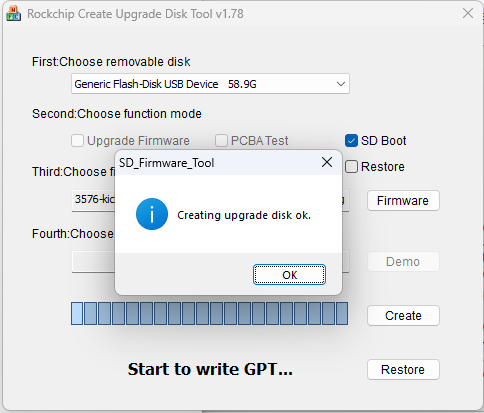
4. Power off board, connect display, insert the SD Boot Card, power on again, check if board booting from SD boot card.
Note
During the first boot, display may stay on the ROCKCHIP KERNEL LOGO screen for a long time (approximately 2~5 minutes). In the waiting, display may also turn off and on repeatedly, which is normal. Please wait patiently for booting into desktop.
SD Installation Card
Note
The OS image on SD Installation Card will automatically overwrite the image on eMMC.
If SDDiskTool shows formatting failure, please read the Q&A chapter below.
1. Installation failure may occur if your SD card has a capacity larger than 16GB. Please modify SDDiskTool_v1.74/config.ini, specify the format as NTFS, save, and restart SDDiskTool.
2. Follow the steps below. all like above chapter of creating SD boot card, ONLY that in step 2 , choose Upgrade Firmware instead of choosing SD Boot.

3. SD Installation Card creation completed.
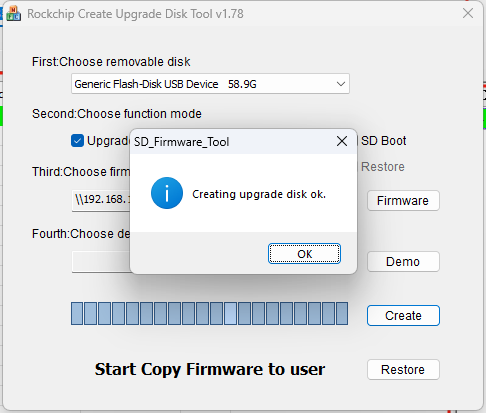
4. Power off board, connect the display, insert the SD Installation Card, power on again. Display will show an installation progress bar and text like "check userdata/oem partition success".
Success
When installation is done, display will show "Please remove SD CARD!!!,wait for reboot". At this point, remove the SD card, wait for the system to reboot (for the first system boot, it may last several minutes, do not power off device, wait board boot into the desktop normally).
When no display is connected, after the blue and green LEDs are both steady on, remove the TF card, when removed, board will automatically reboot, and the blue LED will keep blinking after reboot .
Armbian Image Installation
Armbian as an exception does not share the same USB installation steps with other OS.
Obtaining Armbian Image Package
Download Kickpi K7 image package from OneDrive. Armbian image package include 3 files(sometimes include another Image without desktop, so may be 4 files). First one is Armbian-unofficial_XXX.img, this is system img. The second one is armbian.cfg , which is a partition config file been fed to RKDevTool to do eMMC partition actions. The third one is MiniLoaderAll_rk3576.bin . All 3 files MUST be downloaded to install Armbian image to on-board eMMC.
USB Installation
Install Armbian image to on-board EMMC via USB TYPE-C (To boot Armbian system from SD card, please read SD Boot Card.
Hardware Installation
- Hardware: Windows PC/laptop, DC 12V, HDMI Display (optional), USB TYPE-C cable(some cheap TYPE-C cable only provide current, make sure use the one capable of data exchange). some users reported when using double male TYPE-C to TYPE-C cable, installation failed sometimes, when switch to double male USB TYPE-A to TYPE-C, it's ok.
Tip
Connecting a display makes it easier to observe whether the image installation is successful. K7 supports multiple display connections, only HDMI connection is demonstrated here.
Installation Steps
- Download USB driver DriverAssiant, open DriverInstall.exe in the extracted folder. Click to Install Driver.
- Download RKDevTool, open RKDevTool.exe in the extracted folder.
- Press MASKROM button and hold, don't let loose, plug in 12V DC, Connect board and PC/laptop with USB TYPE-C cable. when RKDevTool show “Found One MASKROM device” in status bar, RKDevTool setup talk with board. let loose MASKROM button.
Note
There are two ways to put board into MASKROM mode:
When board is powered off, press and hold the MASKROM button (don't let loose), apply power. The green LED will be steady on, connect the USB cable, after RKDevTool detected one MASKROM device, let loose MASKROM button.
When board is in power on state, press and hold the MASKROM button (don't let loose), then short press the RESET button once, after RKDevTool detected one MASKROM device, let loose MASKROM button.
- Not like Android, And other Linux distro, we can't install Armbian simply as a whole image. please read the following details.
1. Click Download Image to switch tab page. you can see a lot partitions In the partition table area, e.g. Loader, Parameter, etc.
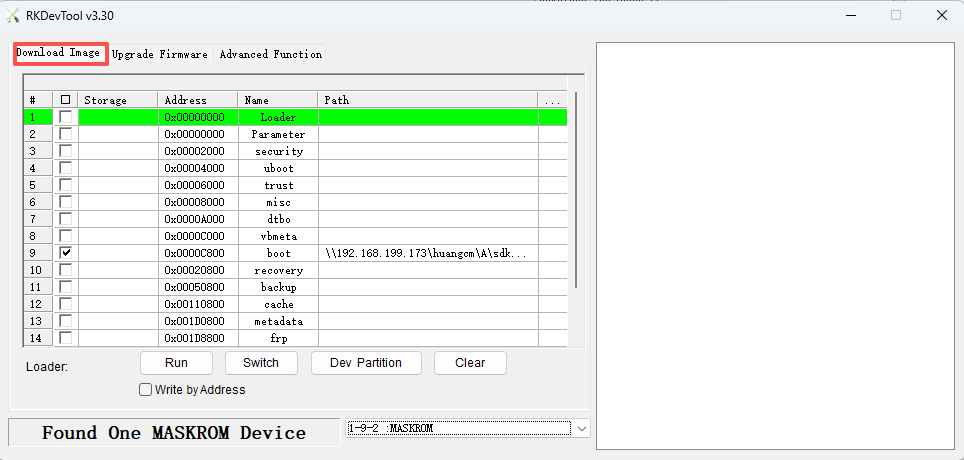
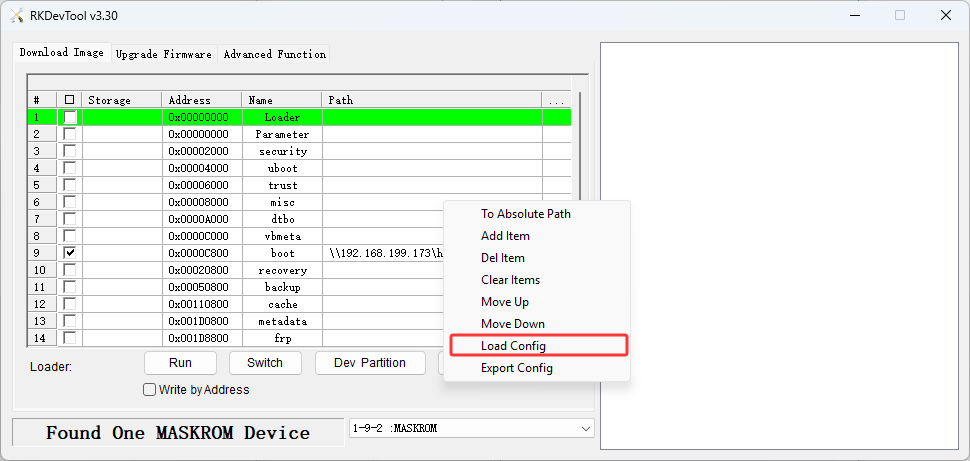
2. Right-click anywhere inside the partition table area to open pop-up MENU, in the MENU, click Load Config, and then select the armbian_*.cfg you downloaded from cloud disk.
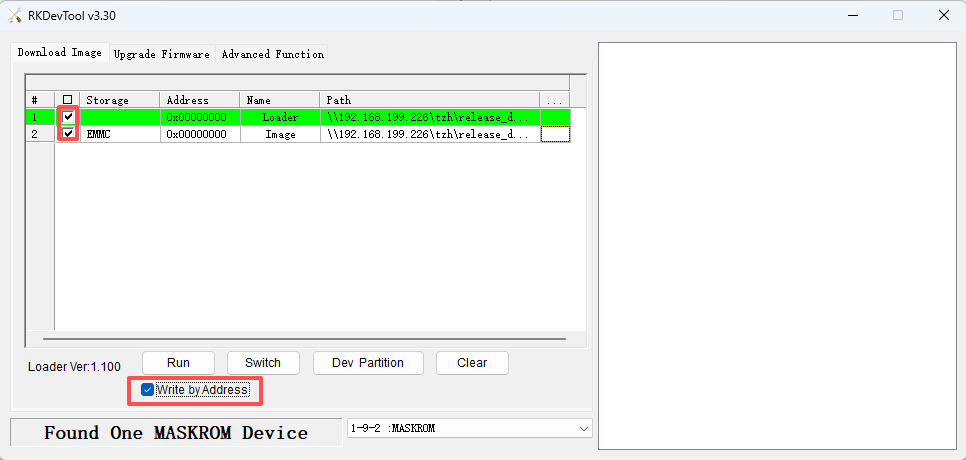
3. After load config to apply armbian.cfg, partition table area changed to reflect the config inside armbian.cfg, there are only two partitions left(Loader and Image). we need to specify img/bin for each partition. First we specify img/bin for loader partition, click the area tagged as (1) , choose MiniLoaderAll_rk3576.bin file.
Note
You might notice that armbian image and miniloader share the same start address. why is that? MiniLoaderAll_rk3576.bin is NOT actually used when Armbian been installed on eMMC, it's mere usage is as a temp salve client to help RKDevTool to install armbian Image to eMMC. First, RKDevTool install miniloader, miniloader been loaded to memory and talk with RKDevTool to install armbian image, overwrite the space where miniloader occupied. that's why when we make Armbian SD boot card, we don't need miniloader.

4. Select Image partition image file, click the area tagged as (2), select the Armbian-*.img image file.

5. Check both lines‘ checkboxes as shown in diagram and also check Write by Address option (Must be checked!).
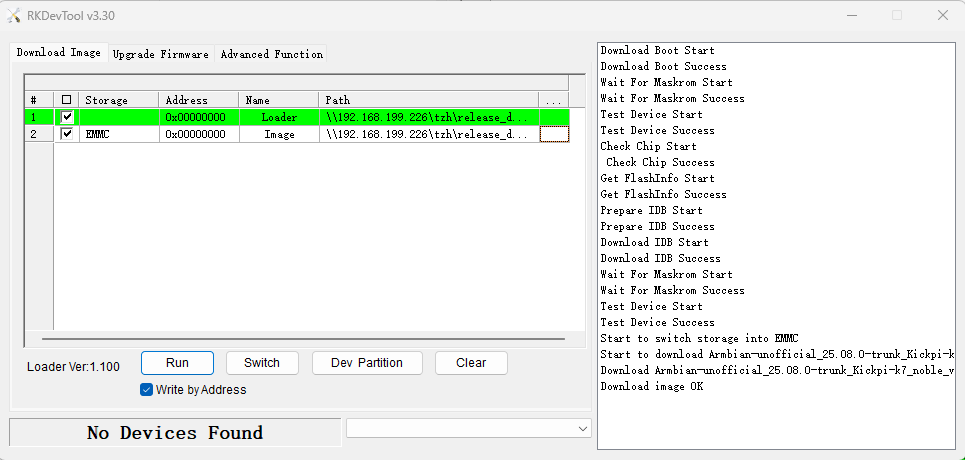
6. Click Run, start installing.
Success
If the board is connected to a display, board will reboot automatically after installing is done, wait for the board to show the desktop
If installing without display, you can't see the reboot process, check the LED status: green LED steady on, blue LED keep blinking! During installing, blue LED is off all the time. so when it starts blinking, means board reboot over.
SD Boot Card
eMMC erase
Note
When on-board eMMC has already been installed with other OS , e.g. ubuntu, Debian, Android,SD card has been installed Armbian and need to boot from SD , it will fail. the reason is the boot procedure will first boot into on-board eMMC's U-boot, when NO SD card mounted, board directly load on-board eMMC's kernel and rootfs. When external SD card mounted, on-board eMMC's U-boot will try to transfer control to U-boot on SD card, but Armbian has the newest bootloader(U-boot) version which is not compatible with older version U-boot, older version U-boot can not load Armbian's U-boot . In this case,we need to erase on-board eMMC's system.
Step
1.Download USB driver DriverAssiant, open DriverInstall.exe in the extracted folder. Click to Install Driver.
2. Run RKDevTool,power off board, press and hold RECOVER button, don't let loose, power on, RKdevTool status bar show Found One LOADER Device,let loose RECOVER button.
3. Choose Advanced Function tab, click EraseAll,this Action will erase data from on-board eMMC.
4. Left text view show erased。
Step1. Create SD Boot Card
Preparations
- Hardware: SD Card (recommended capacity ≥16GB), TF(SD) Card Reader.
- Software: SD card maker tool balenaEtcher, Armbian image.
Steps
1. Connect Storage Card: mount the SD card into the computer via the card reader.
2. Launch Software: Open the installed balenaEtcher as Administrator user.
3. Select Image: Click "Flash from file", select the downloaded Armbian-*.img system image file.
4. Select Target: Click "Select target drive", choose the SD card device you just mounted.
5. Start Flashing: After confirming the information is correct, click "Flash!".

6. Installation Complete: Wait for Flash Completed notification, then close the window.
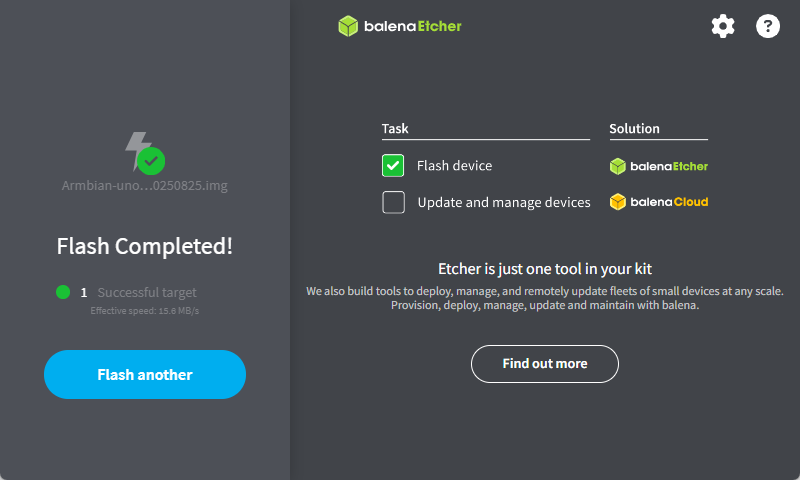
If the image is undamaged and the situation shown in the diagram occurs, the issue may be poor contact of the USB port; please replace the USB port and try again.

Step2. Boot Device Using SD Card
Note
First Boot Guide
1. Be Patient: After the first power-on, the system will automatically perform initialization configuration. Do not power off or restart during this process.
2. Completion Sign: When the screen displays the graphical desktop or command-line login prompt, it indicates boot is over.
1. Power Off Device: Ensure target board is powered off.
2. Insert Boot Card: Insert the created SD Boot Card into slot.
3. Power On and Boot: Apply power to the device, the system will begin booting from the SD card.
4. Wait for Boot Completion: The first boot may take several minutes for initialization, please wait patiently for the system to enter the desktop.
System Configuration
In this chapter, you will use Mobaxterm for serial debugging, ADB for Android debugging, and SSH for remote connection.
Account and Password
Default usernames and passwords for different systems are as follows:
| System | Username | Password |
|---|---|---|
| Debian11 | linaro | linaro |
| Debian11 | root | root |
| Ubuntu20.04 | kickpi | kickpi |
| Ubuntu20.04 | root | root |
| Armbian | kickpi | kickpi |
Mobaxterm
Using Serial Port debugging tool connect K7 to get a console. please check pinout to find UART pins as shown in below diagram.
K7 DEBUG UART Pins
- 2D Pin Diagram

- Physical Image

Tool Preparation
- Software: Mobaxterm
- Hardware: Serial Debug Cable aka. USB-TTL debug cable
Note
Red: VCC (no need to connect); Green: TX; White: RX; Black: GND. If you can't get Serial Port output in Mobaxterm, just switch Green and White wire and try again.

Hardware Installation
- Diagram

Mobaxterm Configuration
1. Click session to create a new session window.
2. Select the session window type as serial.
3. Select the serial COM port number (Check COM number by opening Windows Device Manager -> Ports interface).
4. Set Speed(bps) to 1500000.
5. Start the session window.
As shown, after clicking OK, you will enter the command-line input window.

When K7 board is powered on and connected to the computer, Mobaxterm outputs boot information as follows.

Connection successful. Press Enter in the command-line interface to input commands, successfully logging into the mainboard console.

ADB
Android system supports ADB functionality. ADB (Android Debug Bridge) is an Android system debugging bridge tool. It supports connecting to devices via USB or network, enabling device management and debugging operations such as app installation, file transfer, command execution, etc. ABD is a utility inside Google's Android platform-tools. you can download platform-tools from Google's developer site also.
Tool Preparation
- Hardware: USB Type-C Data Cable
- Software: download ADB_Tool
Hardware Installation
Connect one end of the USB TYPE-C data cable to the mainboard, the other end to the personal host.
ADB Installation
1. Extract the compressed package, e.g., to Windows path D:\ADB\adb-tools.
2. Open cmd window, switch to the extraction directory.
3. Run the command. Successful run indicates installation success.

4. Start ADB debugging.
SSH
SSH stands for Secure Shell, an encrypted network transmission protocol. Its core function is to securely remotely log into servers, execute commands, or transfer files in insecure network environments.
Account and Password
Default usernames and passwords for different systems are as follows:
| System | Username | Password |
|---|---|---|
| Debian11 | linaro | linaro |
| Debian11 | root | root |
| Ubuntu20.04 | kickpi | kickpi |
| Ubuntu20.04 | root | root |
| Armbian | kickpi | kickpi |
IP Address Acquisition
DHCP automatically assigns IP addresses; no settings are needed. Device IP can be obtained in multiple ways.
- when there is Desktop: Connect the board to a display, log into the system, use
ifconfig eth0to get IP address. - via serial port: Enter
ifconfig eth0in the serial terminal to get IP address (Serial connection refer to Mobaxterm chapter above).
SSH Connection
Enter the command in the command line to perform SSH connection:
Example:
PS C:\Users\16708> ssh kickpi@192.168.77.186
The authenticity of host '192.168.77.186 (192.168.77.186)' can't be established.
ED25519 key fingerprint is SHA256:635IZrLQdeYlWWl3SCdLxu9fxLEPmStBapj4APCjzZE.
This key is not known by any other names.
Are you sure you want to continue connecting (yes/no/[fingerprint])? yes
Warning: Permanently added '192.168.77.186' (ED25519) to the list of known hosts.
kickpi@192.168.77.186's password:
Welcome to Ubuntu 24.04.2 LTS (GNU/Linux 6.1.75 aarch64)

 * Documentation:  https://help.ubuntu.com
 * Management:     https://landscape.canonical.com
 * Support:        https://ubuntu.com/pro

This system has been minimized by removing packages and content that are
not required on a system that users do not log into.

To restore this content, you can run the 'unminimize' command.
To run a command as administrator (user "root"), use "sudo <command>".
See "man sudo_root" for details.

kickpi@kickpi:~$
Q&A
Cause: SD cards larger than 32GB need to use NTFS file system format.
Solution: Modify SDDiskTool_v1.74/config.ini, specify the format as NTFS, save, and restart SDDiskTool.
- Armbian Image installing Failure?
If encountering the following boot failure message, it indicates Armbian image installing failed and cannot go on.

Solution:
First step, install android / other linux distro to restore the system.
Second step, redo the armbian image installing.
- ROOT User Login Failed?
1. Check if configuration was successful
Run the following commands. If the output is PermitRootLogin yes, it indicates configuration success:
console$ cat /etc/ssh/ssh_config | grep PermitRootLogin
PermitRootLogin yes
console$ cat /etc/ssh/sshd_config | grep PermitRootLogin
PermitRootLogin yes
2. Root user login configuration
Modify SSH configuration files: