Linux QT Environment Setup
QT Runtime Environment Test
Ubuntu 20.04
Ubuntu 20.04 comes with the Qt 5.12.8 runtime environment by default.
1. Check the Qt libraries:
2. Copy the demo application to any directory on the system and run the test:
Debian 11
Debian 11 comes with the Qt 5.15.2 runtime environment by default.
1. Check the Qt libraries:
2. Copy the demo application to any directory on the system and run the test:
QT Cross-Compilation Environment Setup
Test platform: Virtual machine running Ubuntu 20.04
GCC Cross-Compilation Toolchain
- Cross-compilation toolchain included in the SDK
Toolchain path (not recommended due to potential version incompatibility issues):
- Install the GCC cross-compilation toolchain
Download the GCC cross-compilation toolchain from the cloud storage link. Place the downloaded archive in the virtual machine and extract it. -C /opt/gcc-arm specifies the extraction path.
- Environment variable configuration
1. To allow the system to correctly recognise the cross-compilation toolchain, add its installation path to the environment variables.
Temporary (only valid for the current terminal session):
Permanent:
2. Verify the installation:
If the output is similar to the following, the installation is successful:
aarch64-none-linux-gnu-gcc (GNU Toolchain for the A-profile Architecture) 9.2.1 20191203
Copyright (C) 2019 Free Software Foundation, Inc.
This is free software; see the source for copying conditions.  There is NO
warranty; not even for MERCHANTABILITY or FITNESS FOR A PARTICULAR PURPOSE.
qmake Installation
In Qt projects, qmake generates MakeFiles from .pro project files. To build Qt on the development board, install Qt, gcc, and the source code directly without modifying the build tools.
1. Download Qt from the official Qt website to download the latest version (historical versions are available here).
Official download guide:
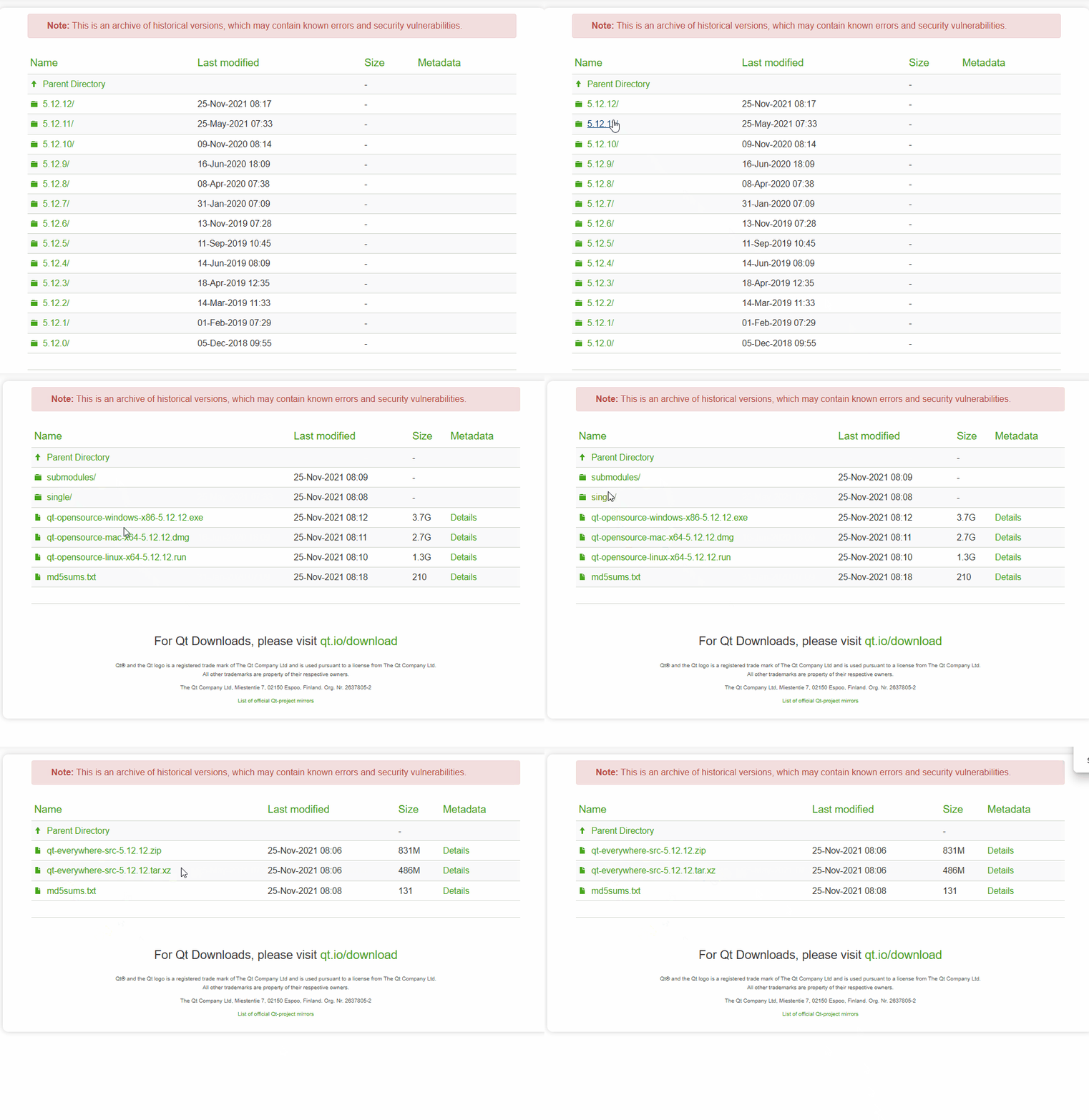
2. Install the required dependencies and toolchains:
$ sudo apt-get install build-essential perl python3 git
$ sudo apt-get install '^libxcb.*-dev' libx11-xcb-dev libglu1-mesa-dev libxrender-dev libxi-dev libxkbcommon-dev libxkbcommon-x11-dev
$ sudo apt-get install flex bison gperf libicu-dev libxslt-dev ruby
$ sudo apt-get install libxcursor-dev libxcomposite-dev libxdamage-dev libxrandr-dev libxtst-dev libxss-dev libdbus-1-dev libevent-dev libfontconfig1-dev libcap-dev libpulse-dev libudev-dev libpci-dev libnss3-dev libasound2-dev libegl1-mesa-dev gperf bison nodejs
$ sudo apt-get install libasound2-dev libgstreamer1.0-dev libgstreamer-plugins-base1.0-dev
$ sudo apt-get install libgstreamer-plugins-bad1.0-dev
$ sudo apt install clang libclang-dev
$ sudo apt-get install xz-utils
$ sudo ln -s /usr/bin/python3 /usr/bin/python
3. Extract the downloaded Qt archive into the /opt folder:
Navigate into the extracted folder and create an auto.sh script file:
#!/bin/bash

./configure \
    -prefix /opt/Qt/ \
    -opensource -confirm-license \
    -nomake examples \
    -nomake tests \
    -release \
    -xplatform linux-aarch64-gnu-g++ \
    -device-option CROSS_COMPILE=/opt/gcc-arm/bin/aarch64-none-linux-gnu- \
    -no-eglfs \
    -no-xcb \
    -no-opengl \
    -skip qt3d \
    -skip qtcharts \
    -skip qtandroidextras \
    -skip qtlocation \
    -skip qtmultimedia \
    -skip qtsensors \
    -skip qtserialbus \
    -skip qtserialport \
    -skip qtwayland \
    -skip qtdeclarative \
    -skip qtxmlpatterns \
    -skip qtwebchannel \
    -skip qtwebengine \
4. Modify the qmake.conf file
Note
The Qt source directory qtbase/mkspecs/ contains configurations for different platforms. This example uses the linux-aarch64-gnu-g++ directory's qmake configuration. However, since the cross-compilation toolchain may differ, you need to modify qmake.conf to match the toolchain you are using.
# modifications to g++.conf
QMAKE_CC                = /opt/gcc-arm/bin/aarch64-none-linux-gnu-gcc
QMAKE_CXX               = /opt/gcc-arm/bin/aarch64-none-linux-gnu-g++
QMAKE_LINK              = /opt/gcc-arm/bin/aarch64-none-linux-gnu-g++
QMAKE_LINK_SHLIB        = /opt/gcc-arm/bin/aarch64-none-linux-gnu-g++

# modifications to linux.conf
QMAKE_AR                = /opt/gcc-arm/bin/aarch64-none-linux-gnu-ar cqs
QMAKE_OBJCOPY           = /opt/gcc-arm/bin/aarch64-none-linux-gnu-objcopy
QMAKE_NM                = /opt/gcc-arm/bin/aarch64-none-linux-gnu-nm -P
QMAKE_STRIP             = /opt/gcc-arm/bin/aarch64-none-linux-gnu-strip
5. Run the script to cross-configure the Qt source code:
Note
./configure options:
-prefix /opt/Qt/: Qt installation path
-opensource -confirm-license: Install the open-source community edition of Qt
-nomake examples: Skip building and installing Qt example programs
-nomake tests: Skip building and installing Qt test cases and test frameworks
-release: Build Qt in Release mode
-xplatform: Specify the target platform for Qt compilation
-qtlocation: Provides a full suite of cross-platform location services
-qtwebengine: High-performance web rendering engine based on the Chromium core
-skip: Skip compilation of the specified Qt module
If your project does not require location services or web rendering, you can use -skip to omit the qtlocation and qtwebengine modules, significantly reducing compilation time.
6. Run the build (compilation takes approximately 4 to 12 hours):
After compilation completes, run the following command to install Qt to the path specified by -prefix (/opt/Qt/):
7. After successful installation, update the environment variables:
export QTDIR=/opt/Qt
export PATH=$QTDIR/bin:$PATH
export MANPATH=$QTDIR/man:$MANPATH
export LD_LIBRARY_PATH=$QTDIR/lib:$LD_LIBRARY_PATH
8. Check the version:
qtcreator Installation
Tip
You must install Qt before installing Qt Creator. Qt Creator can be installed via different methods; choose the one that best suits your needs.
Installation via Installer Package
Tip
Install Qt Creator in the virtual machine.
1. Go to the Qt official website and select the installer package:
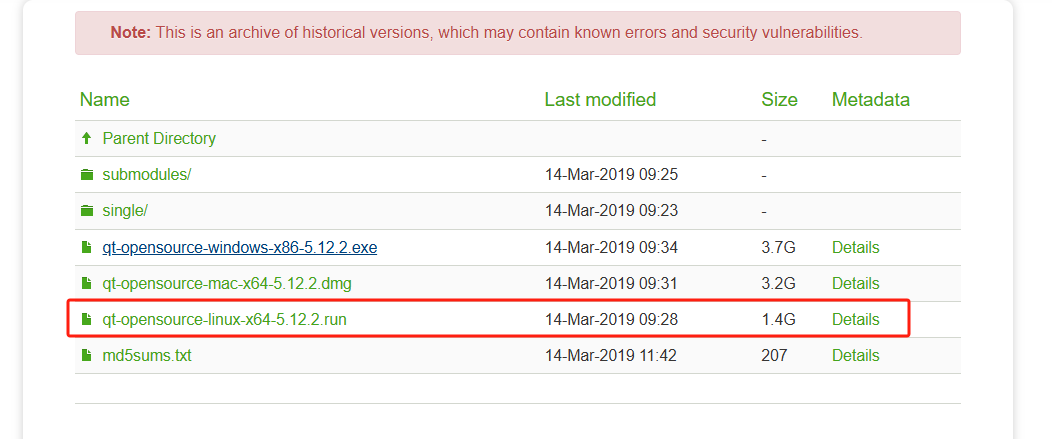
2. Run the installer in the virtual machine:
Tip
You need to register a Qt account. The installation process is graphical and similar to the Windows installation.
Installation via apt
Tip
Install Qt Creator on the development board.
Install Qt Creator via apt. Note that the version may differ from your installed Qt version.
Installation from Source
Tip
Install Qt Creator in the virtual machine.
Compiling a specific version of Qt Creator from source is only recommended in special cases. It is advisable to use a Qt Creator version that matches your Qt framework version.
1. Download the Qt Creator source code:
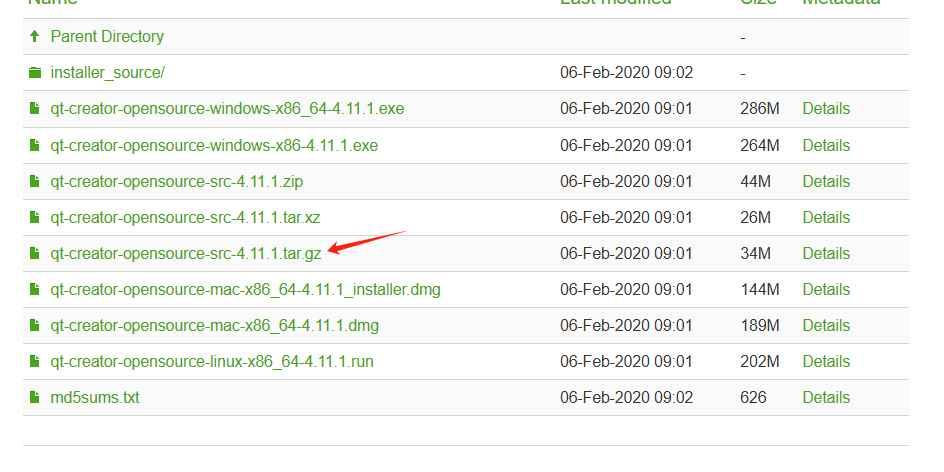
2. Extract the archive, navigate to the extracted directory, and run:
3. After running the above command, a MakeFile is generated. Build the project:
4. After compilation completes, run:
5. The bin directory contains qtcreator and qtcreator.sh. Run the following command to start Qt Creator in the background and configure it as needed:
Kit Configuration
1. Under GCC, add the C compiler and C++ compiler:
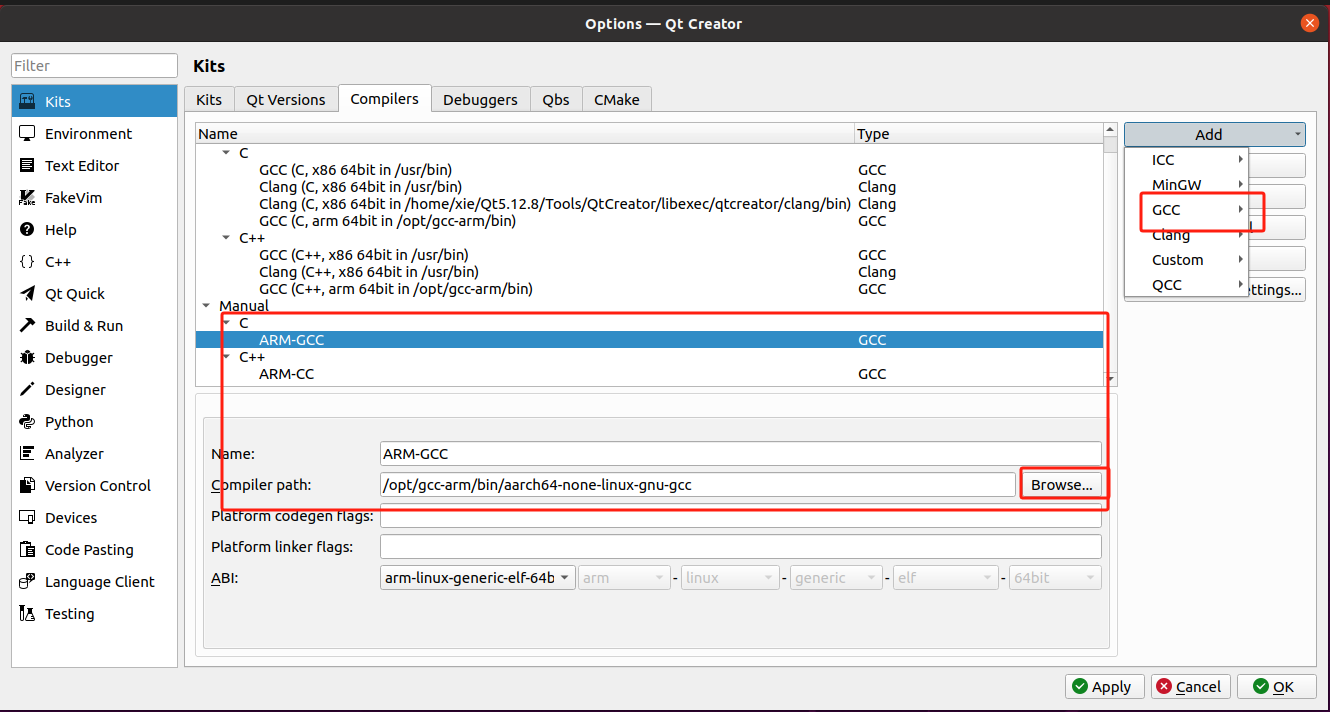
2. Add qmake:
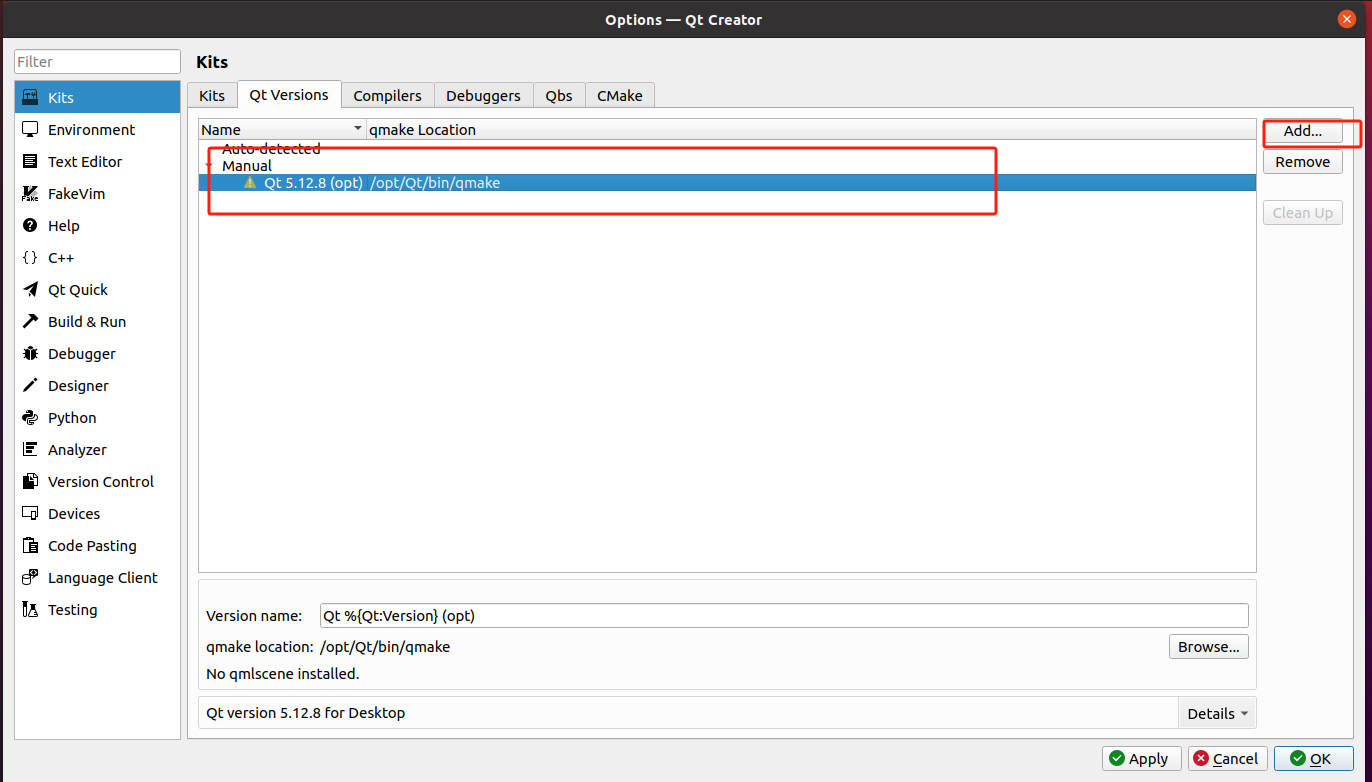
3. Configuration completed:
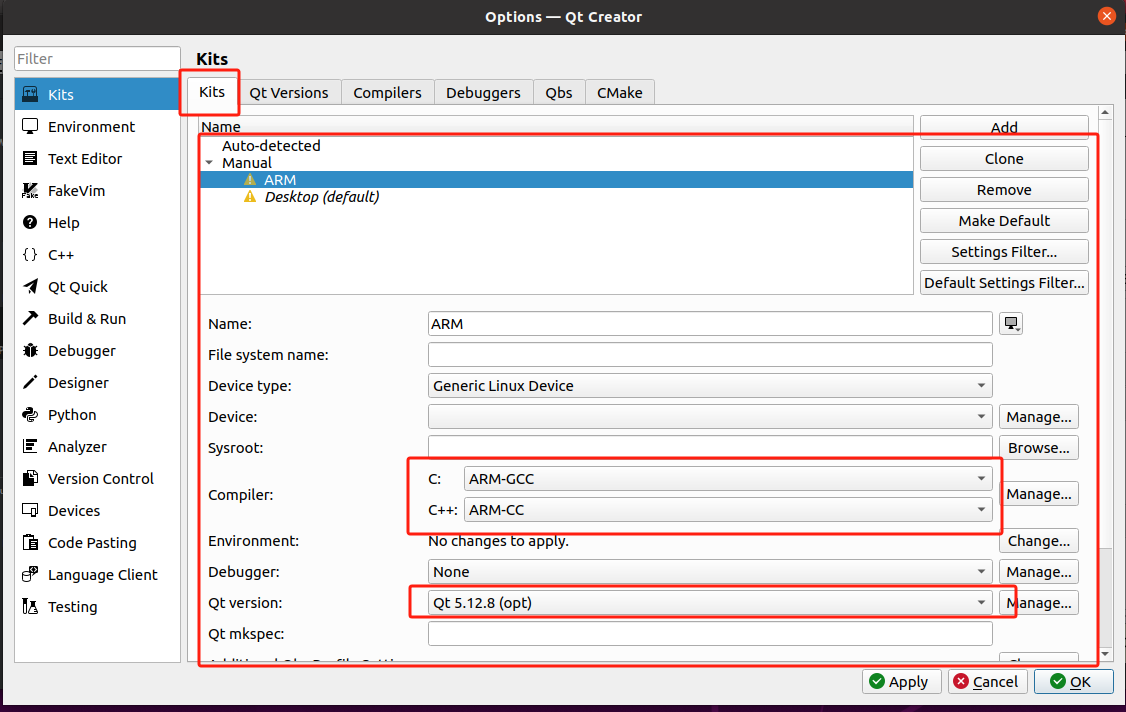
Windows Cross-Compilation Environment Setup
Cross-compile Qt 5.12.10 for the aarch64 (ARMv8) architecture on Windows 10/11.
Install Qt
It is recommended to install offline to avoid the Qt account login prompt. Follow the instructions in the Qt installer and select the appropriate components. After installation, navigate to Qt5.12.10\Tools\mingw730_64\bin, copy mingw32-make.exe, and rename it to make.exe.
Configure Environment Variables
Add the following paths to the system PATH:
Install Required Tools
Install ActiveState Perl 5.36:
Install Python (ensure "Add to PATH" is selected), then verify:
Cross-Compilation Toolchain
Extract the cross-compilation toolchain, rename the folder to aarch64-linux-gnu, and add its bin directory to the system PATH.
Build Qt Source Code
Use the MinGW command-line tool (not PowerShell) and navigate to the Qt source directory:
.\configure.bat -release -opensource -prefix D:\Qt\CrossCompilation\Qt5.12.10-ARMv8 -nomake tests -nomake examples -no-opengl -skip qtvirtualkeyboard -platform win32-g++ -xplatform linux-aarch64-gnu-g++
Accept the open-source license by entering y to complete the configuration.
# Build (adjust the -j parameter according to your CPU core count)
mingw32-make -j10

# Install
mingw32-make install
Configure Qt Creator
Go to Tools → Options → Kits:
| Configuration Item | Action |
|---|---|
| Qt Version | Add the cross-compiled qmake.exe |
| Compilers → C++ | Add aarch64-linux-gnu-g++ |
| Compilers → C | Add aarch64-linux-gnu-gcc |
| Debuggers | Add aarch64-linux-gnu-gdb.exe |
| CMake | Add make.exe (the renamed mingw32-make) |
| Kits | Create a new Kit and associate the above configurations |
Testing
Create a new Qt project, select the ARM_Linux Kit to compile, and push the generated binary to the board for execution.