Linux VNC Remote Control
VNC (Virtual Network Computing) is a graphical desktop sharing system based on the Remote Framebuffer Protocol (RFB). It allows users to connect to a remote computer over a network and operate its desktop as if working on a local machine.
Configure VNC Server on the Board
- Environment setup
- Create/Change password
Example:
Note
The password file path $(passwd_path) is /home/kickpi/.vnc/passwd
kickpi@kickpi:~$ x11vnc -storepasswd
Enter VNC password:
Verify password:
Write password to /home/kickpi/.vnc/passwd?  [y]/n y
Password written to: /home/kickpi/.vnc/passwd
- Start VNC server
console$ export DISPLAY=:0
console$ x11vnc -display :0 -auth /home/kickpi/.Xauthority -rfbport 5900 -rfbauth $(passwd_path)
Example:
kickpi@kickpi:~$ export DISPLAY=:0
kickpi@kickpi:~$ x11vnc -display :0 -auth /home/kickpi/.Xauthority -rfbport 5900 -rfbauth /home/kickpi/.vnc/passwd
Connect to VNC from Windows
-
Using Mobaxterm
-
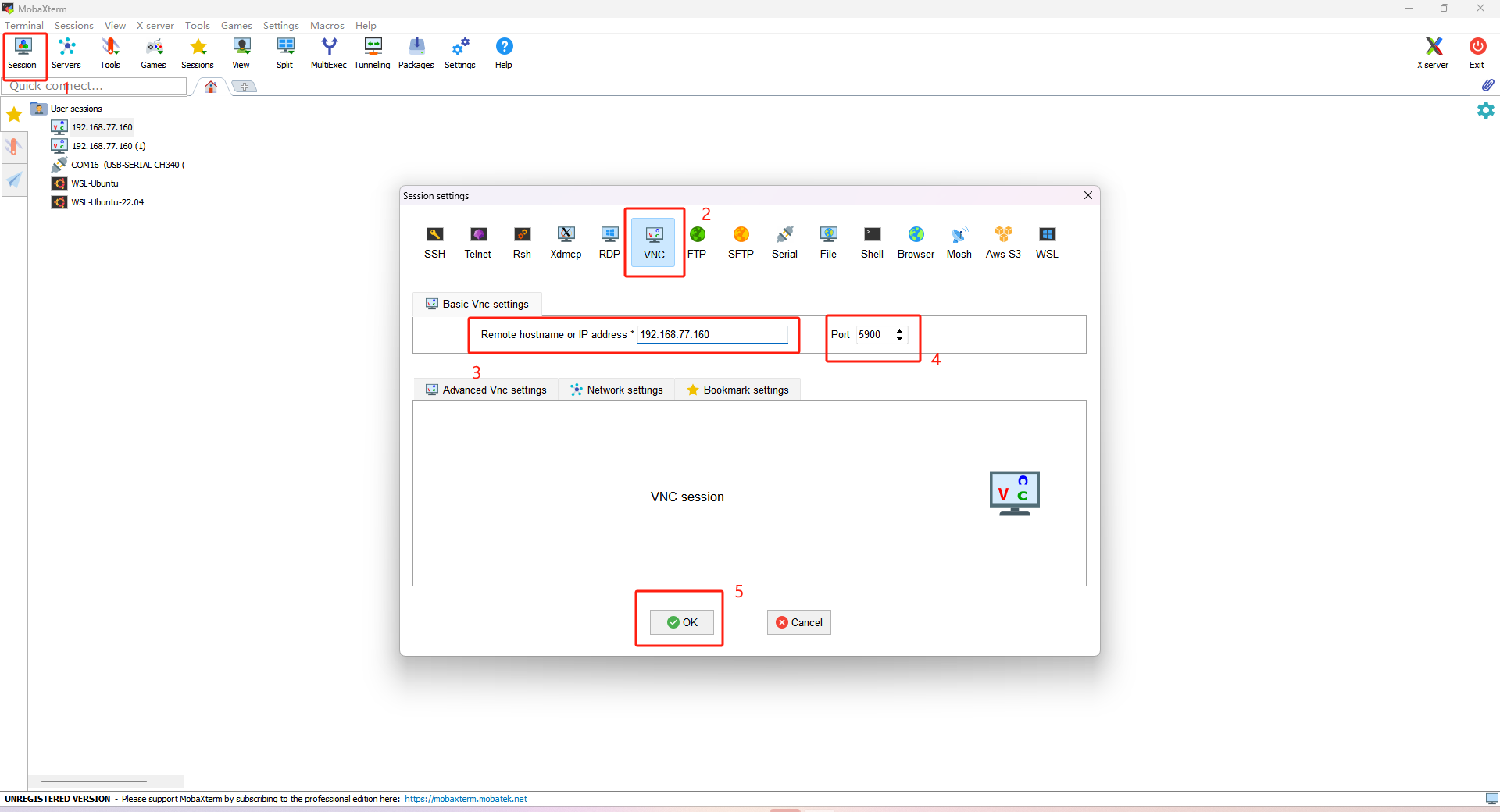
Download Mobaxterm and click Session to create a new session window.
-
Select VNC as the session type.
-
Enter the IP address.
-
Enter the port number.
-
Start the session.
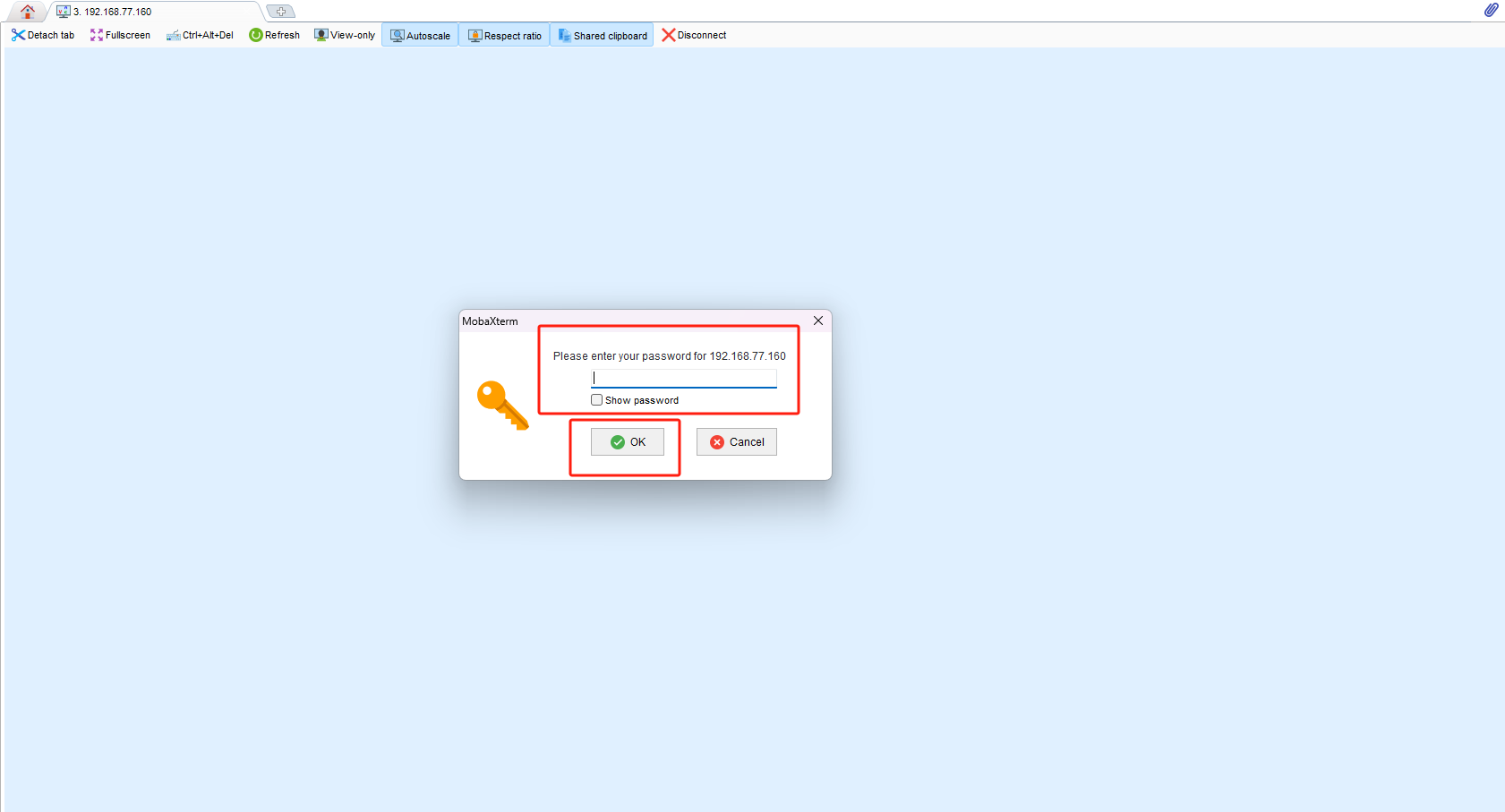
- Enter the password and click OK.