Linux VNC Remote Control
VNC (Virtual Network Computing) is a graphical desktop sharing system based on the Remote Framebuffer Protocol (RFB). It allows users to connect to a remote computer over a network and operate its desktop as if working on a local machine.
Configure VNC Server on the Board
- Environment setup
- Create/Change password
Example:
Note
The password file path $(passwd_path) is /home/kickpi/.vnc/passwd
kickpi@kickpi:~$ x11vnc -storepasswd
Enter VNC password:
Verify password:
Write password to /home/kickpi/.vnc/passwd?  [y]/n y
Password written to: /home/kickpi/.vnc/passwd
- Start VNC server
console$ export DISPLAY=:0
console$ x11vnc -display :0 -auth /home/kickpi/.Xauthority -rfbport 5900 -rfbauth $(passwd_path)
Example:
kickpi@kickpi:~$ export DISPLAY=:0
kickpi@kickpi:~$ x11vnc -display :0 -auth /home/kickpi/.Xauthority -rfbport 5900 -rfbauth /home/kickpi/.vnc/passwd
Connect to VNC from Windows
- Using Mobaxterm
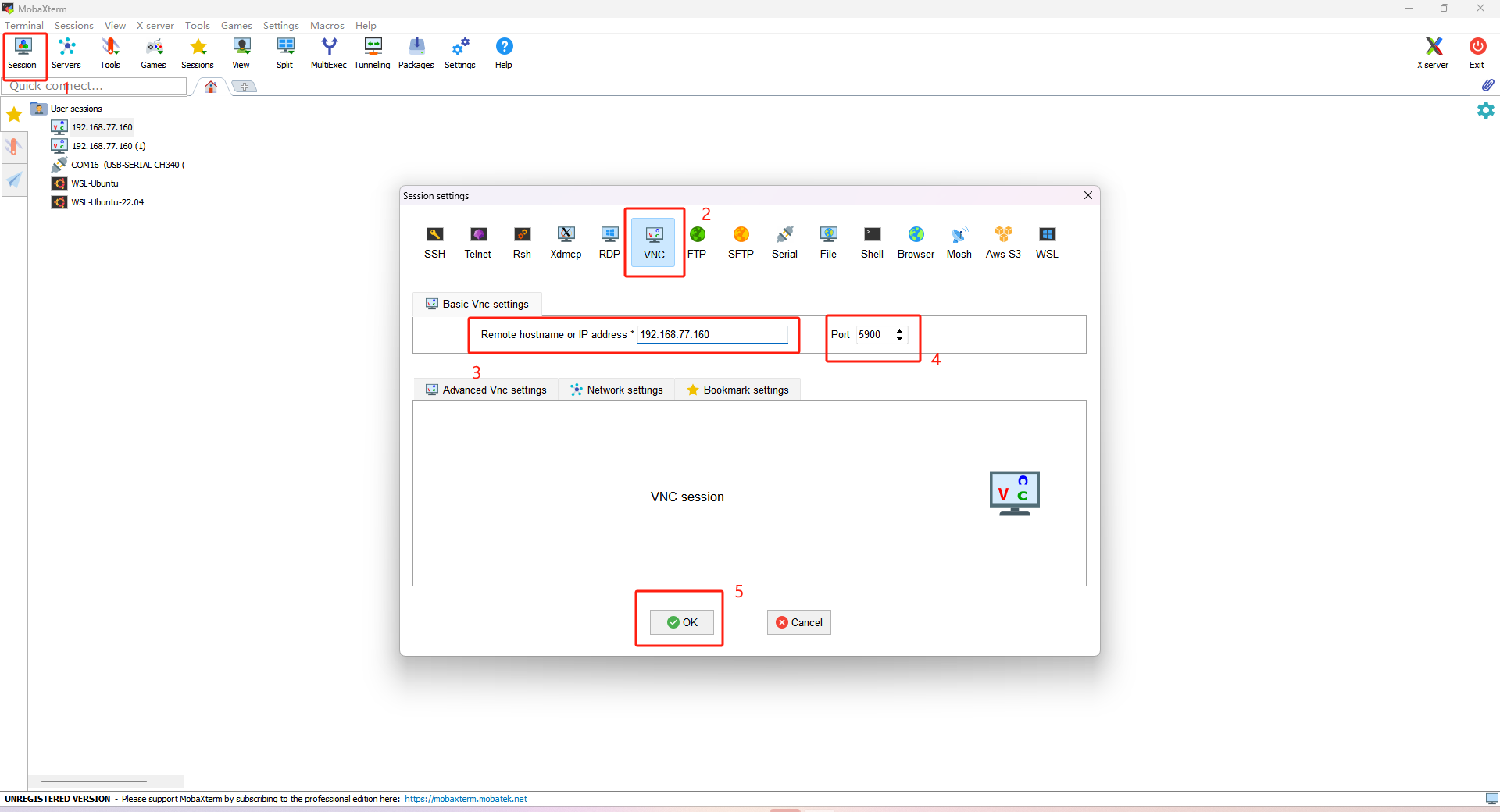
1. Download Mobaxterm and click Session to create a new session window.
2. Select VNC as the session type.
3. Enter the IP address.
4. Enter the port number.
5. Start the session.
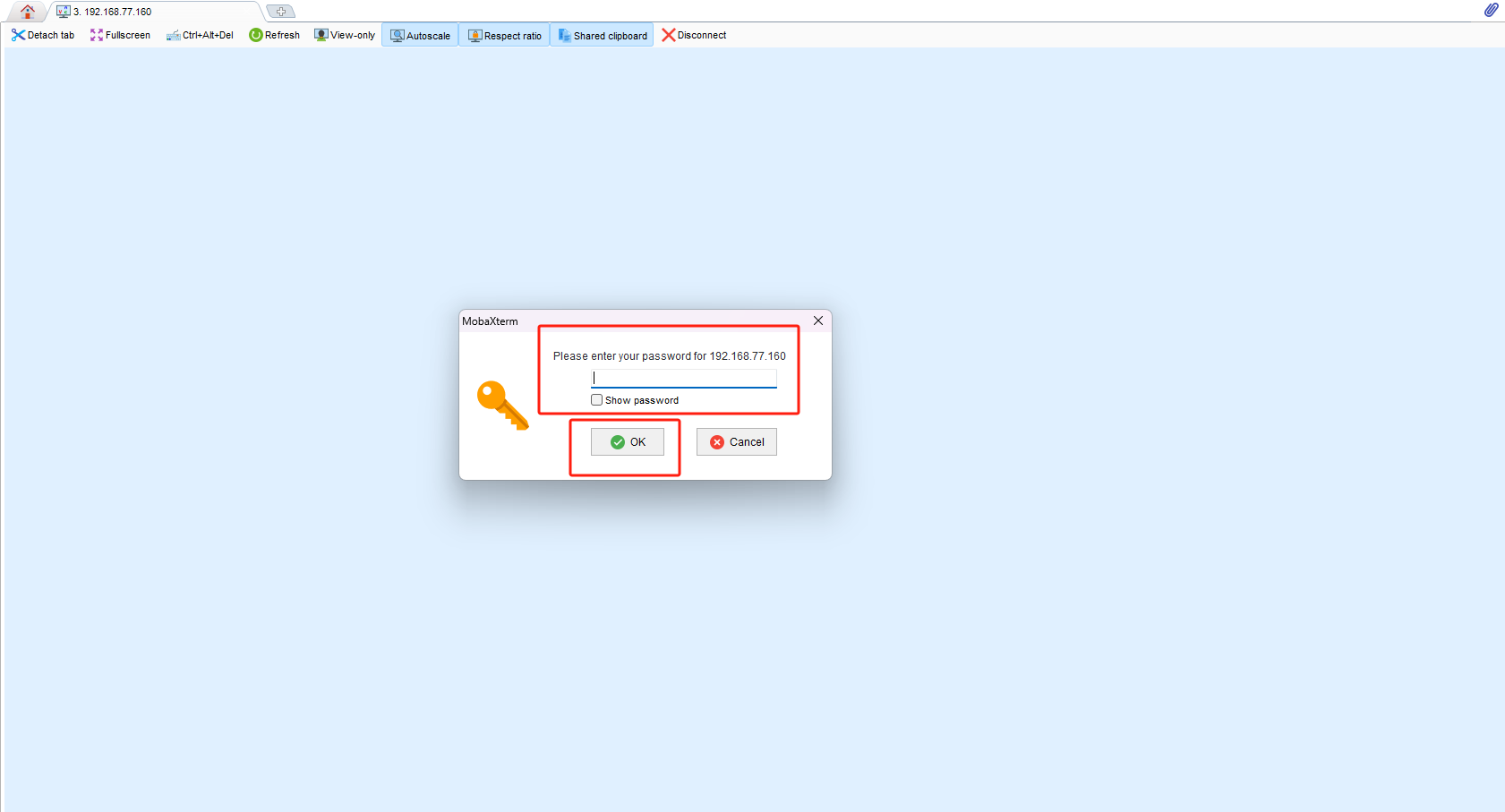
6. Enter the password and click OK.